

Triggers#
A Trigger observes an action, lifecycle event, or value change and tells its Event to run. It separates the event being observed from the Instructions that respond.

Several Triggers, one Event#
An Event runs when any of its Triggers fires. There's no and between them.
Multiple Triggers can open the same door
Put On Trigger Enter 3D and On Mouse Down on the same Event, and the door opens either when the player walks into it or when they click it. You only write the opening logic once.
You can use the same approach across platforms: place a touch Trigger and a gamepad Trigger on one Event to run the same Instructions.
Anatomy#
Every Trigger has a title that describes its configuration, such as On Cube Trigger Enter Player or On Cube Mouse Click. You can read the configured behavior without expanding its settings.
Most Triggers also have settings beneath them. The two most common are which object to watch, and what to filter for.
The listening lifecycle#
A Trigger only listens while its Event component is enabled.
| Event state | Trigger behavior |
|---|---|
| Enabled | Subscribed and listening. |
| Disabled | Unsubscribed. The Trigger doesn't observe events that occur while disabled or replay them afterward. |
| Destroyed | Unsubscribed and released. |
Re-enabling the Event subscribes its Triggers again. This switches a behavior at runtime without changing the Trigger list.
Categories#
Triggers are grouped by the kind of event they observe. Use these categories to narrow a search; the Triggers reference contains the complete list.
Component#
These groups mirror Unity's callbacks:
| Group | Contains |
|---|---|
| Lifecycle | On Start, On Enable, On Disable, On Destroy |
| Frame | On Update, On Late Update, On Fixed Update |
| Visibility | On Become Visible, On Become Invisible |
| Hierarchy | On Transform Parent Change, On Transform Children Change |
Update Triggers run every frame
On Update fires every frame, so its Instructions can repeat work even when their inputs haven't changed. For a reaction to a value change, consider a binding. Bindings can reduce how often the Instructions run, though some still read their Signal every frame.
Input#
Input Triggers are grouped by device:
| Group | Contains |
|---|---|
| Cursor | On Mouse Click, On Mouse Down, On Mouse Up, On Mouse Enter, On Mouse Exit, While Mouse Over, While Mouse Dragging |
| Keyboard | On Keyboard Press, On Keyboard Release, While Keyboard Pressing |
| Mouse | On Mouse Press, On Mouse Release, While Mouse Pressing |
| Gamepad | On Gamepad Press, On Gamepad Release, While Gamepad Pressing |
| Input Actions | On Input Action Start, On Input Action Perform, On Input Action Cancel |
The Cursor group relies on Unity's own mouse messages, so the object needs a collider. See Input.
On Mouse Click requires a press and release over the same collider
Use On Mouse Click when both the press and release should occur over the same collider. On Mouse Up fires on release regardless of where the press started.
Physics 3D and Physics 2D#
The 3D and 2D groups contain matching Triggers: On Trigger Enter / Stay / Exit, On Collision Enter / Stay / Exit, and Joint Break.
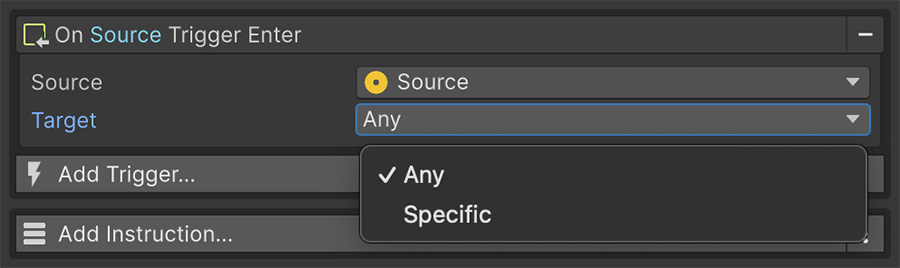
Physics Triggers can filter which object caused them. Leave the filter as Any to respond to any object, or choose a Game Object Signal to respond only to that object.
Application#
Use On Application Focus to respond to focus changes, or On Application Quit to respond when the application quits.
Bindings#
On Number Change, On String Change, On Game Object Change, and their counterparts for other value types watch a value and fire when it changes.
Use them to update a health bar or score label without an On Update Event. Bindings explains their subscription and polling costs.
Choosing the source object#
By default, a Trigger watches the game object its Event is on. Many Triggers let you choose another object through a Game Object Signal.
This lets one Event on a manager object react to activity elsewhere in the scene. Use it when the observed object shouldn't or can't hold the component.

Changing the source re-subscribes the Trigger
Source-based Triggers re-subscribe when the object they point at changes. If the Signal resolves to a different object mid-game, the Trigger detaches from the old one and attaches to the new one automatically.
Try it#
- Add On Mouse Down to an object with a collider and click it in Play mode.
- Add On Trigger Enter 3D to an object with a collider marked as Is Trigger, and walk another object into it.
- Put On Start and On Update on the same Event, log a message, and watch the difference.
- Point a Trigger's source at a different object and confirm it reacts to that one instead.
Where to go next#
- Instructions — follow what happens after a Trigger fires.
- Bindings — watch values instead of actions.
- Triggers reference — inspect every generated Trigger entry.