

Time & tweens#
Time modes determine how waits, tweens, timers, and pool durations respond to pausing and slow motion. Choose a clock for each duration so gameplay can pause while menus and other real-time behavior continue.
Time modes#
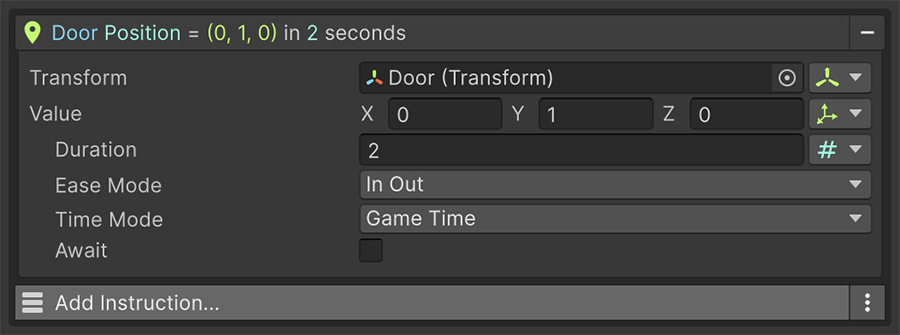
A Time Mode field selects one of two clocks:
| Mode | Follows | Affected by pause |
|---|---|---|
| Game Time | The scaled game clock. | Yes. |
| Real Time | The wall clock. | No. |
Game Time is the default for gameplay. Slowing or pausing the game changes every duration that uses this clock.
Real Time is for the things that must keep working while the game is paused — the pause menu's own animations, a loading spinner, a real-world countdown.
Game Time waits do not finish while paused
At a time scale of 0, Game Time doesn't advance, so a wait using it can't finish until game time resumes. Use Real Time for durations that must complete while paused.
A third option: From Source#
Some fields offer a Time Source with three entries rather than a two-entry Time Mode. The third is From Source, and it takes a game object.
| Source | Follows |
|---|---|
| Game Time | The global scaled clock. |
| Real Time | The wall clock. |
| From Source | A local clock belonging to a particular object. |
A local clock combines its time mode with its own scale, making one object run slower or faster than the rest of the game. Examples include an enemy in a stasis field, a hasted character, or a slow-motion replay of one actor.
If the selected object provides no local clock, From Source falls back to Game Time.
Nothing in the core asset provides a local clock
From Source is an extension point. Visual Script defines the local-clock contract, but the base asset doesn't include a component that provides one. Modules or your own components can supply a clock for From Source fields.
Without such a component, use Game Time or Real Time.
Time scale#
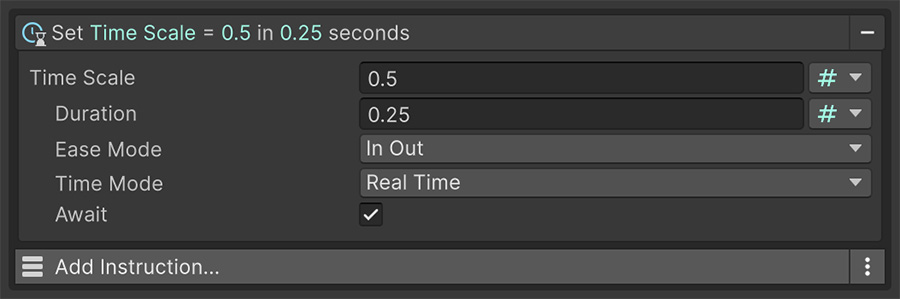
The Set Time Scale Instruction scales the game clock.
| Value | Effect |
|---|---|
0 |
Paused. |
0.5 |
Half speed. |
1 |
Normal. |
2 |
Double speed. |
Use this value to implement pausing, slow motion, and bullet time. Related Instructions adjust fixed delta time and capture frame rate for physics stability and recording.
Review the physics step during slow motion
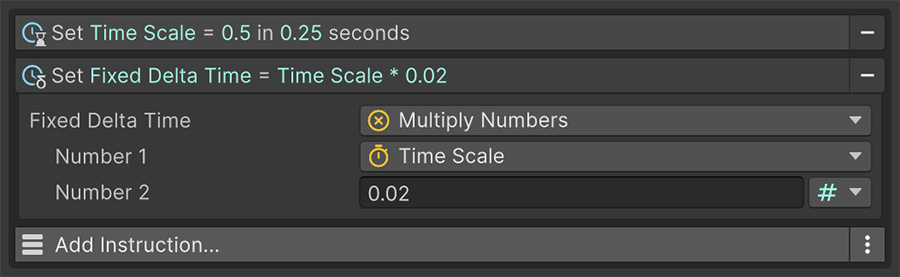
For sustained slow motion, scale fixed delta time alongside the time scale if you need physics to keep updating at the same real-time frequency. Check the result with your physics-driven objects.
Time Signals#
Number Signals expose time values including delta time, fixed delta time, elapsed time, frame count, rendered frame count, the current time scale, and unscaled time values.
Multiply a per-second rate by Delta time to calculate its change for the current frame. For example, this keeps constant-speed movement from depending on the number of rendered frames.
Tweens#
A tween changes a value gradually from where it is to where you want it, over a duration.
Instructions that set numeric or spatial component properties include a Transition section. It supports Number, Vector2, Vector3, Quaternion, and Color values. For example, use Set Transform Position, Set Light Intensity, or Set Graphic Color to tween those properties.
Bool, String, Integer, and asset-reference setters assign immediately without a Transition section.
| Setting | Controls |
|---|---|
| Duration | How long to take. 0 assigns instantly. |
| Ease Mode | How the change is distributed across the duration. |
| Time Mode | Game time or real time. |
| Await | Whether the Instruction waits for the tween before the list continues. |
A duration of 0 assigns immediately, while a value above 0 creates a tween. The same Instruction handles both behaviors.
The Instruction's title reflects it too — Cube Position = (0, 3, 0) becomes Cube Position = (0, 3, 0) in 1 seconds once a duration is set.
Await runs tweens in sequence
By default, Await is on. The Event waits for the tween to finish before running the next Instruction, so consecutive tweens run in sequence.
Turn Await off to continue the Event while the tween runs, such as when starting several movements together.
Easing#
Easing controls how a tween distributes acceleration and deceleration across its duration.
The easing options are Linear, plus a family of curves each offered in three variants — In (starts slow), Out (ends slow) and In Out (slow at both ends).
| Curve | Produces |
|---|---|
| Linear | Constant speed. Machinery, conveyor belts, scrolling. |
| In / Out / In Out | The default smooth curve. |
| Cubic | A stronger version of the same shape. More pronounced acceleration. |
| Sine | A gentle curve for subtle drifting and breathing motion. |
| Circ | Sharp at one end, soft at the other. A change without overshooting. |
| Back | An overshoot before settling, useful for UI pop effects. |
| Elastic | An overshoot followed by oscillation. |
| Bounce | Bouncing near the destination. |
Choose a direction and curve together, such as Out Cubic, In Out Sine, or Out Bounce. Linear has no directional variants.
Out slows near the destination
Use an Out curve when a UI element or camera should move quickly at first and settle into position. Use Linear when the movement should maintain a constant speed.
Easing a variable#
Set Number and other variable setters assign immediately; their fields don't include a transition.
To ease a variable toward a value, drive it from an On Update Event using a Number Signal that does the interpolation:
| Signal | Behavior |
|---|---|
| Move Toward | Approaches at a constant rate. Predictable, arrives exactly. |
| Interpolate | Blends a fraction of the remaining distance each frame. Fast then slow. |
| Exponential Decay | The same easing, but frame-rate independent. |
A health bar that catches up
- Damage sets
healthimmediately. - An On Update Event sets
displayed-healthto Exponential Decay fromdisplayed-healthtowardhealth. - An On Number Change binding on
displayed-healthupdates the bar.
The bar slides down smoothly while the underlying value stays exact.
Interpolate is frame-rate dependent
Blending a fixed fraction each frame means the value moves faster at higher frame rates. Use Exponential Decay when the same elapsed time should produce the same progress across different frame rates.
For the underlying derivation, see Lerp Smoothing is broken.
Where to go next#
- Control flow — use Instructions that wait for time or state.
- Bindings — react when tweened values change.
- Pooling — apply the same time modes to pool lifetimes.