

Variables#
Summary
A Variable stores typed values between Events. Use a Local Variable for state owned by one game object and a Global Variable for state shared across the game.
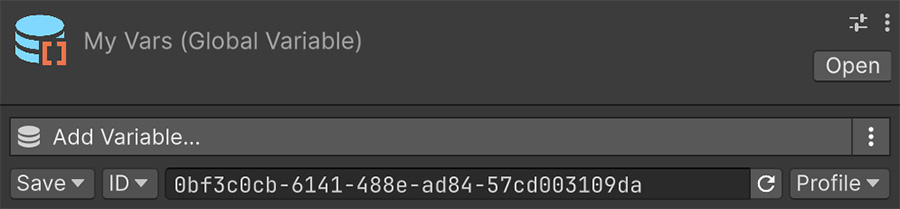
Two containers, one interface#
Visual Script has two kinds of variable container. Both expose the same read and write operations, but they differ in scope, lifetime, and setup:
| Property | Local Variable | Global Variable |
|---|---|---|
| Is a | Component on a game object | Asset in the project |
| Scope | That object only | The whole game |
| Copies | One per instance | Exactly one |
| Lives in | The scene | The project |
| Created with | Add Component |
Create → Visual Script → Variable |
An Instruction that writes a number uses the same Signals for either container.

Choosing between them#
Use a Local Variable when a value belongs to a specific object, such as an enemy's health, a door's locked state, or a chest's contents. Each prefab instance then receives an independent copy.
Local state keeps enemy health independent
Add a Local Variable component with a health entry to the enemy prefab, then spawn several enemies. Each instance has its own health, so damaging one doesn't change the others' values. You don't need to configure each instance separately.
Use a Global Variable for state shared across the game, such as the score, difficulty, or whether the tutorial was completed.
Default to local state
Project-wide variables are accessible from any system, which makes unexpected writes harder to trace. Use one only when several unrelated systems need the same value.
Anatomy#
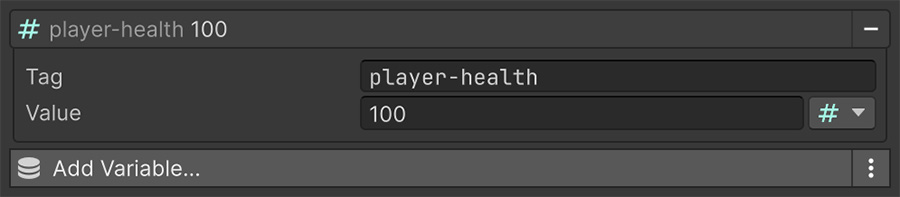
Both containers hold an ordered list of entries, and each entry has exactly two fields:
| Field | Is |
|---|---|
| Tag | An optional label. Signals use it to pick this entry out of the list. |
| Value | The data itself, of a type you choose. |
The available types are the same ones Signals use: Number, String, Bool, Vector2, Vector3, Quaternion, Color, Game Object, Sprite, Texture, Material, Animation Clip, Audio Resource, and Scriptable Object.
Tags are optional#
Tag an entry when it represents specific state, such as player-health or is-door-open. You can leave the tag empty for an item in a sequence, where Signals select entries by position. See Variables as lists.
Tags follow two matching rules:
- They're normalized. Letters, digits,
-, and_stay as entered; all other characters, including spaces, become-. Enterplayer healthand the tag becomesplayer-health. - They're case-sensitive, and duplicates are allowed.
Player-Healthandplayer-healthare different tags. If two entries share a tag, a lookup by tag finds the first match.
Choose tags that describe the state they hold. For example, player-health makes the entry's purpose clearer than hp2.
Reading and writing#
Events read and write variables through Signals:
- Reading — set any Get Signal's source to Variable, choose the container, then choose how to pick the entry inside it.
- Writing — use a Set Instruction whose Set Signal points at the variable.
Every variable Signal has those two halves: which container and which entry. The Index dropdown selects the entry and defaults to First.
Keep that default for a container with one value; select another option once it holds several. Variables as lists covers the remaining options.
A counter reads and writes one variable
- Add a Local Variable component with a number entry tagged
counter. - Add an Event with an On Mouse Down Trigger.
- Add a Set Number Instruction: set
countertocounter + 1.
Both halves of the last step are Signals. The left one points at the variable to write; the right one adds 1 to that variable's current value. The Instruction reads the value before writing the result, so counter increases by 1 on each click.
Increment Number performs the same update in one Instruction. The expanded form exposes the separate read and write Signals.
Signals handle supported type conversions. For example, you can read a Number entry into an Integer field without adding a conversion step.
Writing the wrong type rewrites the entry
An entry's type isn't fixed. Writing a String Signal into an entry that held a Number changes the entry into a String; the write is neither converted nor rejected.
Later Number reads parse numeric text and return 0 for other text, so the mistake usually appears as a wrong value instead of an error. The authored type returns when Play mode ends.
Reacting to changes#
Variables support change notification, so On Number Change and its siblings work on them directly.
Use a separate Event to watch a value instead of updating every consumer from the Event that changed it. The score logic then has no dependency on its label, and another reaction can subscribe independently. See Bindings.
Inspecting at runtime#
Select the object or asset during Play mode and the Inspector shows live values as they change. Use them to verify which Event changed an entry and what it contains now.

Each row is shown as its index, its tag if it has one, and its current value.
Runtime values don't persist
Both kinds work on a copy of the values you authored. Runtime writes don't change the asset, prefab, or scene file, and the values revert when Play mode ends. To keep values between sessions, use the save system.
Try it#
- Build the click counter above and watch the number climb in the Inspector.
- Duplicate the object. Because the state is local, each copy counts independently.
- Swap the Local Variable for a Global Variable and watch both copies share one counter.
- Add an On Number Change Trigger watching
counterand log a message when it changes. - Open the Count Clicks example scene, which builds a counter along these lines.
Where to go next#
- Local Variables — store state on one game object or prefab instance.
- Global Variables — register state shared across the project.
- Variables as lists — select entries by tag or position and change list shape.