

Signals#
Summary
A Signal supplies a typed value to an Instruction, Condition, or other Signal. Choose a constant, variable, context object, lookup, or calculation so an Event can read current game state instead of a fixed value.
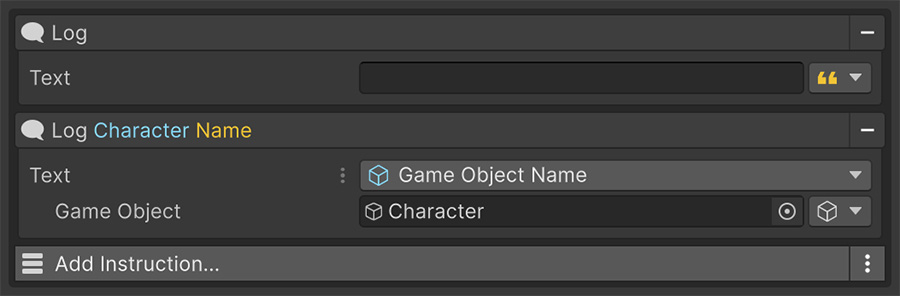
Recognizing one#
A Signal field has a small dropdown button beside it. Click it to open a searchable list of sources for that kind of value.
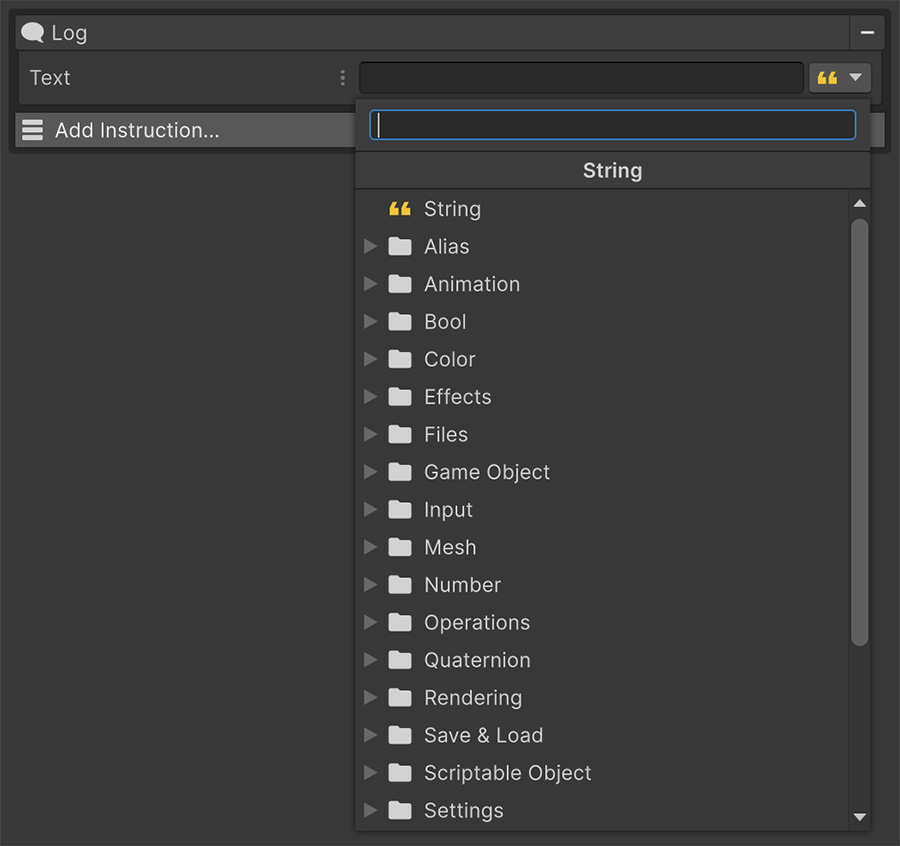
For a number, the list includes constants, variables, transform components, distances, time values, random ranges, and calculations.
Choose a source and the field shows the inputs it needs. For example, Distance asks for two game objects.
Signals separate an operation from its inputs and destination. For example, Set Number combines any Number source with any writable Number destination.
Get and Set#
Get Signals read values, while Set Signals choose where to write them:
| Direction | Does | Example |
|---|---|---|
| Get | Reads a value. | What is the player's health? |
| Set | Writes a value. | Make the player's health 100. |
An Instruction that changes something typically has one Set Signal for its destination and one or more Get Signals for its inputs. A Set Number Instruction has one Set field on the left and one Get field on the right.
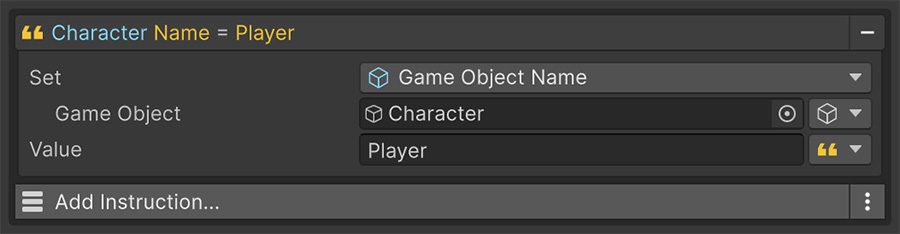
Some sources support both. A game object's name can be read and assigned, so it appears in Get and Set dropdowns alike. Others are read-only by nature: the distance between two objects has a readable value but no meaningful write operation, so it never appears in a Set list.
Signals describe themselves#
Once configured, a Signal renders itself as a short phrase — Player position X, random between 1 and 6, Target name. Those phrases compose, so a whole Instruction reads as a sentence and a whole Event reads as a paragraph.
These descriptions expose an Event's configuration without requiring every field to be expanded.
Signal colors identify their types
Signals use a consistent tint for each type, so you can recognize a Number Signal wherever it appears. You can turn the tint off in Editor settings.
Signals are typed#
A Signal always has a type, and the dropdown only ever offers sources of that type. A field asking for a number never offers you a color.
The main types are Number, String, Bool, Vector2, Vector3, Quaternion, Color, Game Object, Sprite, Texture, Material, Animation Clip, Audio Resource, Scriptable Object, Scene, Variable and Collection. Each is covered in Value types.
Nesting#
A Signal's inputs are themselves Signals, so you can combine sources to calculate a value.
Random between 1 and the player's level is a random-range Signal whose upper bound is a variable Signal. The closest object to the cursor is a closest-in-collection Signal whose reference point is a cursor Signal.
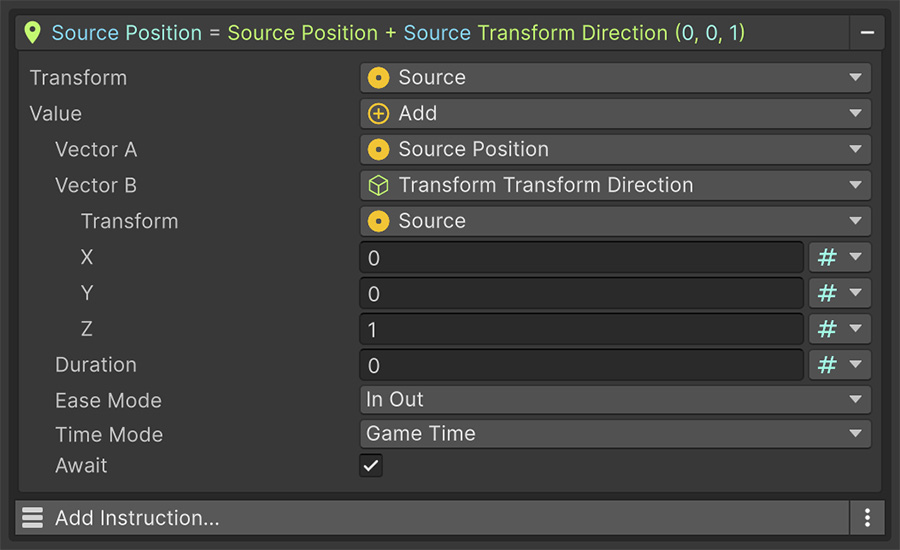
There's no depth limit. In practice, past two or three levels it's clearer to compute the intermediate value into a variable and read that instead.
Source and Target#
Two entries provide the Event's object context in Game Object Signals:
| Entry | Means |
|---|---|
| Source | The game object holding the Event that's running. |
| Target | The other object involved, when there is one. |
For an On Trigger Enter Trigger, Source is the object holding the Event and Target is whatever walked into the volume. That's how one Event on a checkpoint can react to whoever touched it, without knowing in advance who that is. See Source & Target.
Signals can be watched#
Many Signals can also report when their value changes. Choose one in an On Number Change Trigger or its equivalent for another type, and the Trigger starts the Event when it detects a change.
Use a change Trigger for a health bar, score label, or ammo counter. The display then updates when its value changes instead of relying on another Event to refresh it.
Not every Signal supports change detection, and those that do may still read their value every frame. See Bindings to choose a source with an appropriate evaluation cost.
Try it#
- Change a Debug Log Text Instruction's text from a typed value to a game object's name.
- Nest one Signal inside another — a random range whose upper bound is a variable.
- Add an On Number Change Trigger pointed at a variable and log the new value.
- Look at a Set Number Instruction and notice the difference between its left and right fields.
The complete generated catalog is available in the Signals reference.
Where to go next#
- Value types — choose the type a Signal carries and inspect its common sources.
- Game Object Signals — resolve Source, Target, hierarchy entries, and cursor selections.
- Collections — produce multiple values for Foreach and aggregation.
- Bindings — react to Signal changes and account for subscription cost.