

Input#
Summary
Visual Script reads Unity's Input System through Triggers for discrete actions and Signals for current values. Use Input Action assets when controls need rebinding or multiple device bindings.
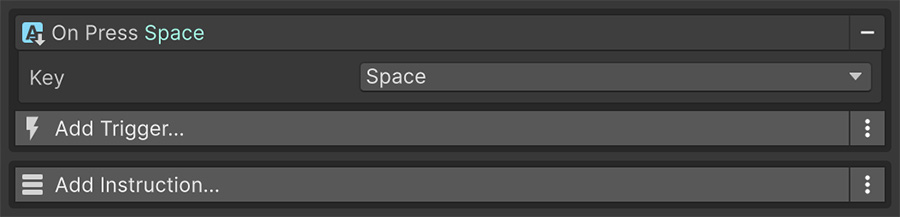
Triggers and Signals#
Use Triggers for discrete actions and Signals for values you read continuously:
| Input | Answers | Use for |
|---|---|---|
| Trigger | Did this happen? | Jumping, shooting, interacting, opening a menu. |
| Signal | What is it right now? | Movement, aiming, camera look, analog throttles. |
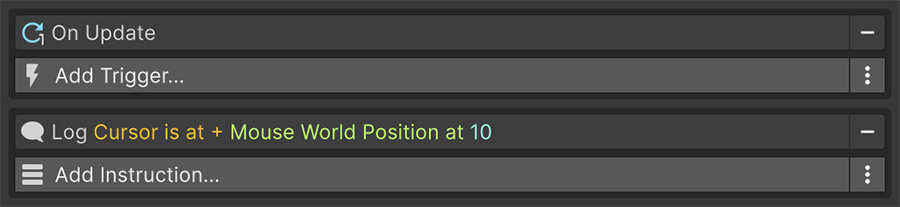
For movement or aiming, read the Signal inside an On Update Event so the value updates each frame.
Input Triggers#
Device Triggers report presses, releases, and holds. Input Action Triggers report the action's phases:
| Device | Triggers |
|---|---|
| Keyboard | On Keyboard Press, On Keyboard Release, While Keyboard Pressing |
| Mouse | On Mouse Press, On Mouse Release, While Mouse Pressing |
| Gamepad | On Gamepad Press, On Gamepad Release, While Gamepad Pressing |
| Input Action | On Input Action Start, On Input Action Perform, On Input Action Cancel |
The first three name a physical control directly. The fourth goes through an Input Action asset, which is the better choice for anything the player might rebind.
Input Signals#
Signals report the current state of a device:
| Reads | Available as |
|---|---|
| Mouse position, in screen coordinates | Number (X and Y) and Vector2 |
| Mouse delta since last frame | Number and Vector2 |
| Scroll wheel, vertical and horizontal | Number and Vector2 |
| Gamepad stick axes and magnitude | Number and Vector2 |
| Gamepad trigger pressure | Number |
| Keyboard as an axis — WASD or arrows | Number and Vector2 |
| An Input Action's current value | Number and Vector2 |
| Touch count, gamepad count | Number |
| Seconds since the last input of any kind | Number |
Use Seconds Since Last Input to fade a HUD, show an idle animation, or enter an attract mode after inactivity.
Either device can provide movement
Add a Vector2 Signal set to WASD to a second one set to the left stick. The unused device contributes 0, so the result supports both devices without branching.
Buttons, floats and vectors#
Components expose configurable input through three reusable field types:
| Field | Produces |
|---|---|
| Button | A discrete press, release or hold. |
| Float | A single axis value. |
| Vector2 | A two-axis value. |
Each field can read the keyboard, mouse, gamepad, or an Input Action. Set its source to None to disable that input.
For example, you can configure a movement field to use WASD, a stick, or a rebindable action without changing the component's movement logic.
What a Button field offers#
The Button field also supports timed holds and, for a mouse, double presses and releases:
| Source | Options |
|---|---|
| Keyboard | Press, Release, While Pressing, Timeout |
| Mouse | Press, Release, While Pressing, Timeout, Double Press, Double Release |
| Gamepad | Press, Release, While Pressing, Timeout |
| Input Action | Start, Perform, Cancel |
| None | Never fires. |
Timeout compares how long the button is held against a duration. Its mode determines when it fires:
| Mode | Fires |
|---|---|
| On Timeout | The moment the duration is reached, while the button is still held. |
| On Release | On release, but only if the button was released before the duration elapsed. |
Enabling and disabling input#
You can enable and disable individual actions or whole action maps at runtime. When a menu opens, disable the gameplay map and enable the UI map; reverse those changes when it closes.
Action maps keep related controls together
Prefer action maps when an entire input context changes. Disabling a map also disables actions you add to it later, without adding Conditions to each Event.
Where to go next#
- Input Actions — configure rebindable actions and action maps.
- Signals — place input values within the Signal model.
- Triggers — inspect the complete Trigger catalog.