

Installation#
Install Visual Script from the Unity Asset Store through Unity's Package Manager. The asset is free and includes example scenes you can import to inspect individual behaviors.
Before you start#
Visual Script relies on Unity packages such as the Input System. Unity's Package Manager installs these dependencies automatically.
Input Triggers require the Input System
Visual Script uses Unity's Input System package. Input Triggers won't work until you've enabled it.
When Unity asks to restart the editor to enable the Input System during installation, accept the restart.
Installing the package#
- Open the Unity Asset Store page for Visual Script and add it to your assets.
- Back in the Unity editor, open
Window→Package Manager. - Change the scope at the top of the window to
Packages→My Assets. - Search for Visual Script, select it, and click Install.
- Wait for the progress bar to finish and for Unity to recompile.
Once Unity finishes compiling, a Visual Script button appears in the main editor toolbar. A Visual Script submenu also appears when you click Add Component on a game object.
Installing the examples#
Visual Script includes a set of small scenes called Get Started. Each scene isolates one behavior and runs independently.
- Open
Window→Package Manager. - Select Visual Script in the list of packages.
- Open the Samples tab.
- Click Import next to Get Started.
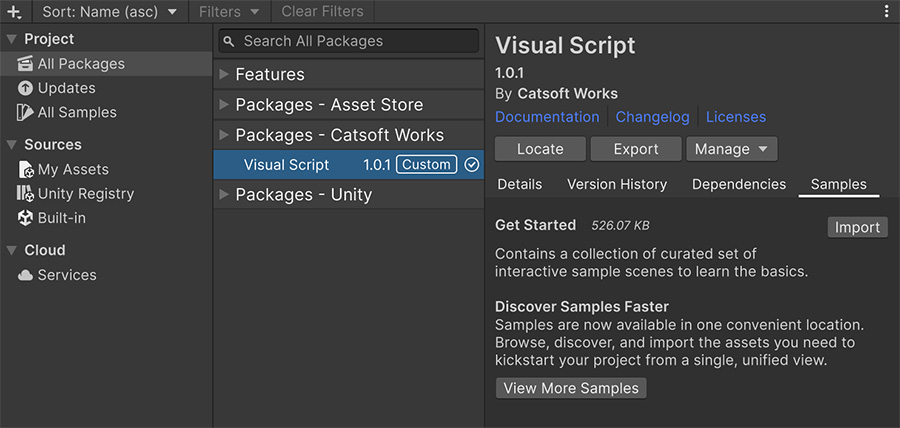
The scenes are copied into your project under Assets/Samples.
Updating#
When a new version is released, the Install button in the Package Manager becomes an Update button. Clicking it removes the old version and installs the new one.
Back up your project before updating
Back up your project and read the release notes before updating. New versions can change behavior, and the backup provides a rollback point.
Where to go next#
- Get started — build your first Event.
- Manual — choose a system to inspect after the package is installed.