

Save & Load#
Summary
Save & Load collects selected state from registered objects and assets, then writes that snapshot to disk. It restores only declared state rather than capturing the entire scene.
How it fits together#
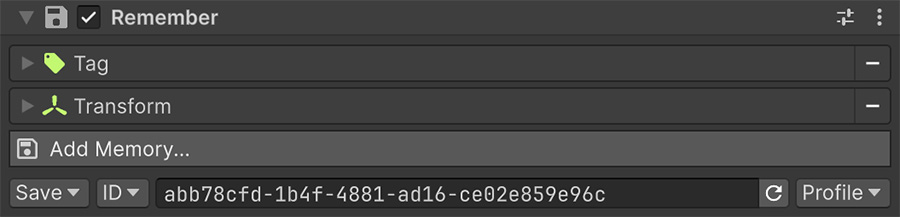
- A Remember component marks a game object as having state, and its Memories select which aspects to capture.
- Saving gathers subscriber data into a snapshot and writes it.
- Loading reads the snapshot and returns each stored value to its subscriber.
Global Variables register automatically
Visual Script subscribes Global Variables to the save/load system at startup. The asset provides the same options as the Remember component.
Choosing what gets saved#
Use Remember to select the state each game object contributes to a save.
Add it with Add Component → Visual Script → Remember, then select the aspects that matter. The options include position, name, destruction, and Local Variable contents.
For a chest whose open state is stored in a Local Variable, select the Local Variable Memory. For a movable crate, select Transform.
The full list is in Memories.
Only remember what matters
Each remembered object adds data to the save and work during loading. Scenery that never changes doesn't need a Remember component.
For Global Variables, enable saving in the asset itself; they don't need a Remember component.
Profiles and shared data#
Choose where each subscriber stores its data:
| Location | Holds |
|---|---|
| Profile | Belongs to one numbered save slot. Most game state goes here. |
| Shared | The same across every slot. Settings, unlocks, high scores. |
Profiles use numeric identifiers such as 0, 1, and 2, with no fixed limit. A single-save game can use profile 0 throughout. See Profiles.
The Instructions#
| Instruction | Does |
|---|---|
| Save Profile | Collects everything profile-scoped and writes it to a slot. |
| Save Shared | Writes only the shared data. |
| Load Profile | Restores a slot, loading the right scene first. |
| Unload Profile | Discards the loaded state and returns to a fresh game. |
| Delete Profile | Deletes the save file. |
These Conditions report save state:
| Condition | Asks |
|---|---|
| Has Any Saved Game | Is there any save at all? |
| Has Saved Game | Is there a save in this particular slot? |
| Is Save Loaded | Has a save been loaded this session? |
Delete from the main menu
Deleting the loaded profile leaves the game running in a scene whose save no longer exists, and doesn't load another profile. Put Delete Profile on a screen where no profile is loaded, such as the main menu.
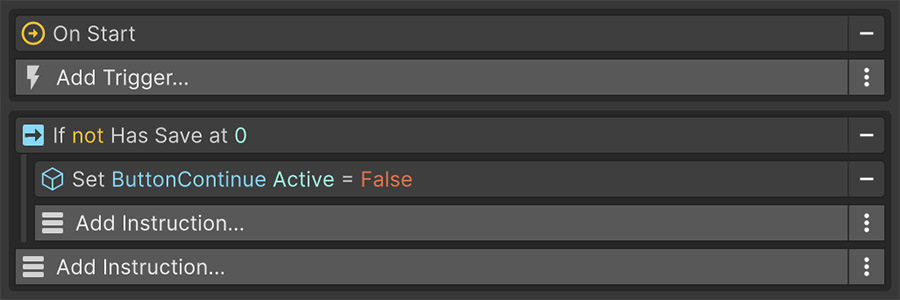
Use these Conditions to gray out Continue when no saved game exists.
Loading is more than reading#
Load Profile does several things in order:
- Reads the stored snapshot for that profile.
- Loads the scene or scenes the save recorded, according to the load policy.
- Restores every persistent subscriber, in priority order.
- Restores the scene-bound objects as the scene comes up.
Because each step depends on the previous one, Load Profile exposes the process as one Instruction.
Loading can destroy the Event that started it
Load Profile waits for the asynchronous load before continuing. If loading destroys the Event's game object with the old scene, don't rely on that Event to run subsequent Instructions.
Scene Triggers can fire before saved state is restored
Loading first creates the scene in its authored state, then applies saved positions and values. During that interval, objects occupy their authored positions.
That moment is long enough to fire a Trigger. A character whose authored position sits inside a trigger volume raises On Trigger Enter during loading, even when its saved position is elsewhere.
Check the authored position when a physics Trigger fires during loading without visible movement.
Ordering#
Subscribers can declare a priority so that some are restored before others. This matters when one system's restore depends on another's already being in place.
For example, a system can restore a character's attributes before restoring the equipment that modifies them.
Getting it right#
Test saving when state is introduced
Add a Remember component when an object gains state that must persist. Verify a save across a full editor restart so missing state and unstable IDs are found before other systems depend on them.
Check these cases early:
- Does the state survive a full editor restart, rather than only a load within one session?
- Does a duplicated object still save correctly? See the note on IDs in Remember.
- Does anything shared remain unchanged when the player switches profiles?
Try it#
- Add a Remember component with the Transform Memory to a cube.
- Create one Event that saves to profile
0on a key press, and another that loads it. - Enter Play mode, move the cube, and save. Move it again, then load and check that it returns to the saved position.
- Exit Play mode, restart, and load again to check that the saved position survives between sessions.
The Save & Load example scenes provide a worked version.
Where to go next#
- Remember — mark a game object as a save subscriber and assign its identity.
- Memories — choose which aspects of the object are captured.
- Profiles — separate save slots from shared data.
- Save settings — configure storage, serialization, encryption, and load policy.