

The Settings window#
Summary
The Visual Script Settings window contains project settings, account access, Registry packages, Global Variables, and personal editor preferences. Project sections affect the build, while most Editor settings apply only to the current user.
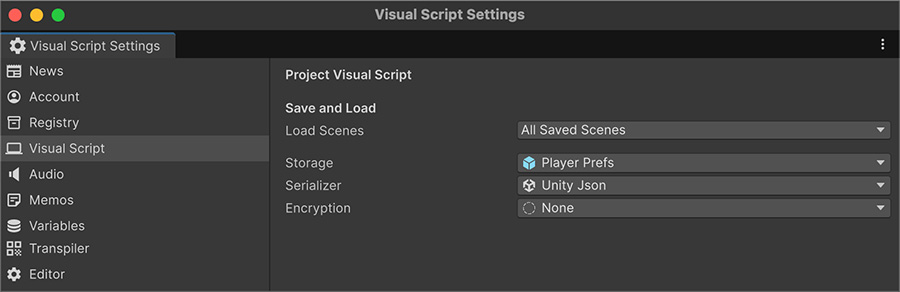
Open it from the Visual Script button in Unity's main toolbar or Window → Visual Script → Settings.
Layout#
A sidebar on the left lists the available sections; the panel on the right shows the selected one. The window remembers your last viewed section between sessions.
| Section | Covers |
|---|---|
| News | Release announcements and what's changed. Opens by default. |
| Account | Sign in to publish to the Registry. |
| Registry | Browse, install and publish community content. See the Registry section. |
| Your project's name | Settings that ship with the game. Includes Save & Load — storage, serialization, encryption and load policy. See Save settings. |
| Audio | The Audio Mixer Group each of the five audio channels is routed to. |
| Variables | Every Global Variable in the project. |
| Editor | Personal editor settings. See Editor. |
Save settings use your project name
If your Unity project is called Moonfall, open the Moonfall section to configure saving. There isn't a separate Save & Load entry in the sidebar.
Installed modules can add sections for their own settings.
The Registry#
The Registry is a shared library of Visual Script content:
| Package kind | Contains |
|---|---|
| Instruction, Condition, Trigger, or Signal | One community-authored node installed as a C# file. |
| Module | A free package published by the Visual Script team. |
| List | A curated set that installs several nodes together. |
Before writing a custom node, search the Registry for one that fits your task. The Registry documentation explains how to find packages, install them, and share your own.
Variables#
The Variables section lists every Global Variable in the project. Select an entry to edit its asset without locating it in the Project window.
Project#
Named after your Unity project, this section holds the settings that ship inside the build. At present, it contains Save & Load. Use it to choose storage, serialization, encryption, and the scene load policy.
Keep the defaults while prototyping. Before release, review Save settings because storage and encryption changes can invalidate existing saves.
Account#
Signing in is only needed to publish to the Registry. Downloading and installing content works without an account.
You sign in by pasting a token from the website, which the editor stores locally. See Unity Access Token.
Editor#
Most Editor settings are stored per user, so changing them won't affect your teammates. You can adjust Signal colors, list folding, and the highlight duration after an Instruction runs. The Debug setting is an exception: it uses a project-wide scripting define symbol.
Keep the defaults unless you need different debugging, display, folding, or search behavior. See Editor.
Where the data lives#
Each project section is backed by an asset stored under a Resources folder in your project, created automatically the first time it's needed.
These assets belong in version control
Project settings are shared by the whole team, so the assets should be committed. The Editor section is different — almost all of it is stored per user in Unity's editor preferences and never leaves your machine.
Adding your own section#
Modules and your own code can add sections to this window. See Custom settings.
Where to go next#
- Registry — search, install, and publish nodes, lists, and modules.
- Editor — configure personal display, debugging, and search preferences.
- Save settings — control how project saves are loaded and written.