

The Registry#
Summary
The Registry is a shared library of Visual Script content: Instructions, Conditions, Triggers, Signals, lists, and modules. Search and install packages from the Unity editor or visualscript.dev, then publish your own packages with a free account.
When Visual Script doesn't include the node you need, search the Registry before writing it. Another developer may already have published the same behavior.
What's in it#
| Kind | Is |
|---|---|
| Instruction | A single Instruction, as one C# file. |
| Condition | A single Condition. |
| Trigger | A single Trigger. |
| Signal | A single Signal source. |
| List | A curated bundle that installs several of the above at once. See Lists. |
| Module | A complete free module published by the Visual Script team and installed through Unity's Package Manager. |
Installing and publishing are free. You don't need an account to install a package; publishing requires a free account and a Unity Access Token.
Registry scripts are community code that Unity compiles inside your project. Read the source and check its dependencies before you install it.
Two ways to use it#
The editor and website access the same library, with different controls for managing projects and accounts:
| Location | Best for |
|---|---|
| The Unity editor | Project package management. Search, install, update, uninstall, and publish scripts. Open it from the Registry section of the Settings window. |
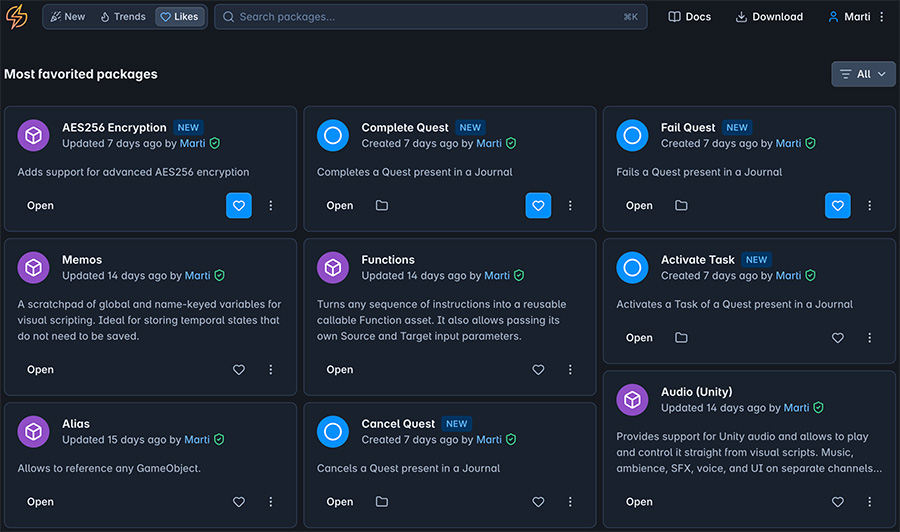
| visualscript.dev | Source and account management. Browse new and trending packages, inspect source, curate lists, follow authors, give likes, and generate a Unity Access Token. |
Use the editor to manage packages in the current project. Use the website to browse source, like packages, build lists, and manage your account.
Search before you write a custom node
Search by the behavior you need and filter by package kind. Reusing an existing node avoids maintaining another implementation in your project.
Community packages#
Each community node starts as code that a developer chose to share from a project. Publishing a focused node makes that behavior available to other Visual Script projects.
If you've written and tested a reusable node, Contributing explains how to prepare it. A node that solves one recurring task is often more reusable than a system tied to one project.
Likes affect discovery
If a script, list, or module works for your project, open it on visualscript.dev and press Like. Likes affect the Likes view and search ranking, and they give the author feedback about continued use.
Where to go next#
- Finding what you need — search, filter, and inspect a listing before you install it.
- Installing — add, update, and remove scripts, lists, and modules.
- Lists — install several nodes together or curate an integration bundle.
- Contributing — prepare a node or list for other developers.
- Unity Access Token — authenticate the Unity editor for publishing.
- Publishing — upload a script and turn its attributes into a Registry listing.
- Updating — version and maintain a published package.