

Get started#
Build an Event that launches a cube when you click it. You'll create a scene and configure the behavior in Unity without writing code.
Step 1: Build the scene#
Create two Unity primitives:
- Add the ground with
GameObject→3D Object→Plane. Leave it at the origin. - Add the cube with
GameObject→3D Object→Cube, and set its Position to(0, 1, 0)so it sits floating above the plane.
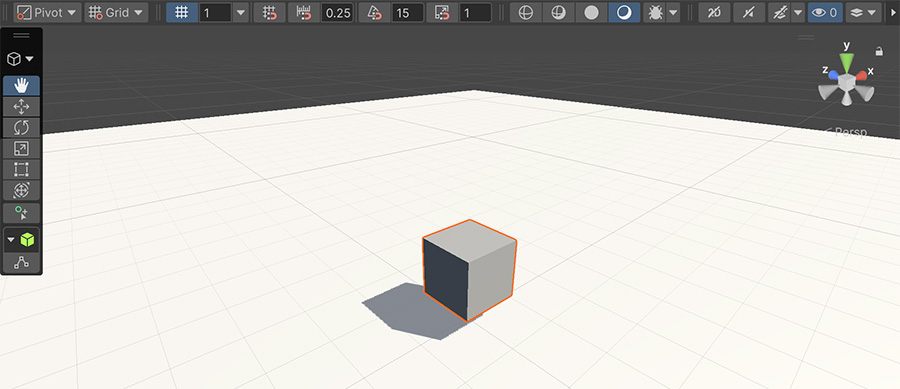
Unity primitives include colliders
Unity's primitives come with a collider attached. Physics needs the collider so the cube lands on the floor instead of falling through it. Mouse Triggers need it so the pointer has something to hit.
Step 2: Make the cube physical#
Select Cube, click Add Component, and add a Rigidbody.
Press Play. The Rigidbody makes the cube drop and land on the plane, which provides a physical object for the Event to move.
Stop Play mode before continuing.
Step 3: Create the Event object#
Create an empty game object with GameObject → Create Empty and name it Launcher.
Select it, click Add Component, and choose Visual Script → Event.
The component appears with two empty lists: Triggers at the top, and Instructions below.
- The Triggers list defines when the Event runs.
- The Instructions list defines what the Event does.

The Event doesn't have to live on the cube
This Event lives on a separate, empty object. An Event doesn't need to be attached to the object it affects.
This separation lets one manager object drive several props and keeps shared logic in one place.
Step 4: Add the Trigger#
Click the + button under Triggers. A search window opens with the available Triggers.
Type mouse click and pick On Mouse Click. It fires when a mouse button is pressed and released over the same collider.
The Trigger initially watches Launcher, which has no collider, so it can't detect a mouse click. Point it at the cube:
- Open the Trigger's object field dropdown.
- Choose Rigidbody, under
Components→Physics 3D. - Drag
Cubefrom the Hierarchy into the field that appears.
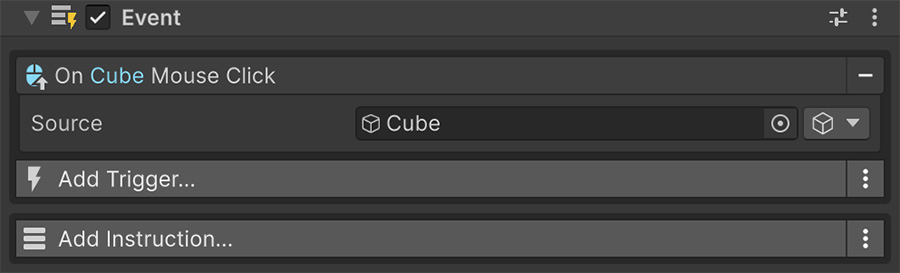
The Trigger line now reads On Cube Mouse Click.
The Rigidbody source resolves its game object
The dropdown offers several ways to identify an object, including its name, tag, or position in the hierarchy. With Rigidbody, you assign the component and Visual Script resolves the game object that owns it.
This source accepts only objects with a Rigidbody, which prevents assigning an incompatible object.
Game Object, at the top of the same dropdown, takes the object itself and finds its Rigidbody through an internal cache. Use either source for this example.
Step 5: Add the Instruction#
Click the + button under Instructions, type add force and pick Rigidbody Add Force, under Physics 3D → Rigidbody.
It has three fields:
| Field | Set it to |
|---|---|
| Rigidbody | Drag Cube in, the same way as before. |
| Force | (8, 2, 0) |
| Mode | Impulse |
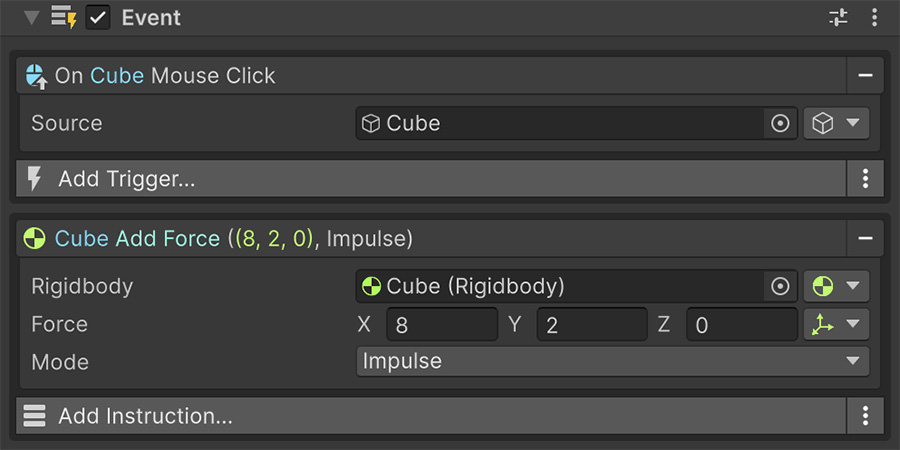
The force combines direction and strength. A Y value of 2 pushes the cube upward, while an X value of 8 pushes it along the positive X axis. The Z value of 0 adds no force along the Z axis.
Impulse applies the whole push at once
Use Force for a push applied over successive physics steps, such as a rocket engine or constant wind. Impulse applies a push at once, as with a kick, bullet hit, or explosion.
Use Impulse for this single shove. Switching to Force produces much less movement because Unity applies the same values across one physics step.
Step 6: Play#
Press Play, then click the cube in the Game view.
It launches up and to the right, tumbles, and comes to rest. Click it again to send it further.
Clicking in the Scene view does nothing
Mouse Triggers use Unity's pointer messages, which only fire in the Game view. If nothing happens, check that you're clicking the cube in that view.
What the Event does#
The Launcher object now holds an Event with one Trigger and one Instruction. Read it from top to bottom in the Inspector:
On Cube Mouse Click → Cube Add Force ((8, 2, 0), Impulse).
Every Trigger and Instruction describes itself in one line. This makes the Event readable without opening each field.
The Event waits until the Trigger fires, then runs its Instructions from top to bottom. Add another Instruction to extend what happens after each click.
Try it#
- Change the direction. Set the force to
(2, 8, 0)so the cube moves upward more than sideways. - Add a second Instruction. Put Debug Log Text below the force and confirm both Instructions run in order.
- Add a delay. Put Wait for Seconds with a duration of
1above the force. - Add a Condition. Wrap the force in an If with Rigidbody Is Sleeping so clicks have no effect while the cube is moving.
- Duplicate the cube. The Event still affects the original because it holds a direct reference. Source & Target explains how one Event can act on whichever cube was clicked.
Where to go next#
- Event component — understand the execution model behind the Event you built.
- Example scenes — inspect one complete project for each introductory behavior.
- Conditions — add yes-or-no checks to an Event.