

Scenes#
Visual Script provides Instructions to load, unload, and select Unity scenes, with Signals to choose a scene at runtime. Load Instructions also let you reposition objects after the new scene loads.
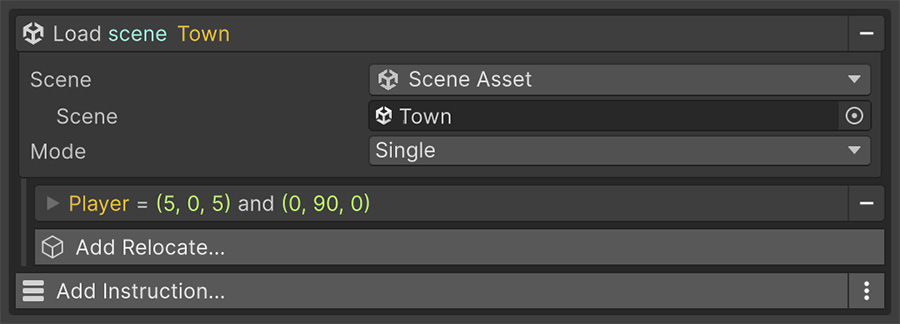
Loading#
| Instruction | Does |
|---|---|
| Load Scene | Loads a scene immediately. |
| Load Scene Async | Loads a scene in the background. |
| Unload Scene Async | Unloads an additive scene in the background. |
| Set Active Scene | Chooses which loaded scene is the active one. |
Each takes a Scene Signal, so you can choose the scene at runtime.
Single and additive#
Both load Instructions offer a mode:
| Mode | Behavior |
|---|---|
| Single | Replaces everything currently loaded. |
| Additive | Adds the scene alongside what's already there. |
Use Additive to load a world in sections or keep a manager scene loaded while gameplay scenes load and unload.
Single mode replaces the loaded scenes
A Single load unloads the current scenes and destroys their objects unless they are marked to persist. Don't rely on an Event in an unloaded scene to run logic after the transition.
Use additive loading to keep a manager scene open, or mark the objects that must survive a Single load as persistent.
Relocates#
Both load Instructions provide Relocates, a list of objects to move after the new scene loads. Each entry specifies an object, destination position, and rotation.
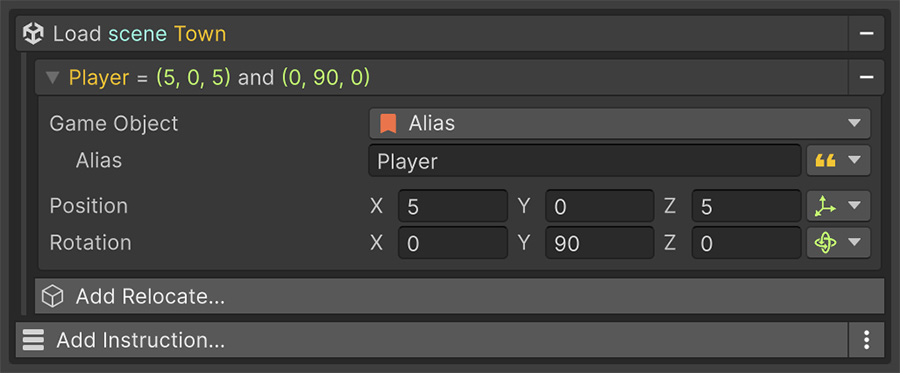
Use a relocate to place the player at the matching doorway when moving between connected areas.
A door between two rooms
Add Load Scene to the door's Event and configure one relocate entry:
- Game Object — the player
- Position — the arrival point in the new room
- Rotation — facing into the room
When the Event loads the room, the relocate moves the player to the arrival point and applies its rotation.
The load operation waits until the next frame before applying relocates. This gives the new scene's objects time to initialize before their positions change.
Alias resolves unloaded-scene objects
To reference an arrival point in a scene that isn't loaded yet, use the free Alias package. Assign an alias ID to the arrival point, then select it with the Alias Signal.
When the new scene loads, the Signal resolves the ID to the arrival point for the relocate.
Scene Signals#
A Scene Signal identifies a scene. There are six sources:
| Source | Identifies |
|---|---|
| Scene | A scene asset you drag into the field. |
| By Name | The scene with a given name. |
| By Index | The scene at a build-settings index. |
| By Path | The scene at a project path. |
| Active Scene | Whichever scene is currently active. |
| Game Object | The scene a given game object belongs to. |
By Name and By Index take String and Number Signals, so a variable, save file, or calculation can select the scene. Point the inner Signal at that value instead of looking for a Scene variable source.
Use Active Scene or Game Object to inspect the current scene, such as when displaying a debug overlay or deciding whether to relocate an object.
There is no Scene-from-Variable source
A variable can't hold a Scene value, so the dropdown offers no Variable entry. Store the scene's name or build index in a String or Number variable instead, and feed that into By Name or By Index.
Scenes must be in the build settings
Unity cannot load a scene at runtime unless it is in the build settings. Check the list first when a load Instruction runs without changing scenes.
Loading and saving#
The save system loads scenes as part of restoring a profile, following the policy set in Save settings. You don't need to load a scene yourself before loading a save.
Loading a scene directly restores its authored objects without applying a saved profile. Use Load Profile when you want to resume saved progress.
Persisting across loads#
For Single loads, mark objects that must survive using Unity's persistence mechanism. Merely placing them in an additive scene doesn't protect them from a later Single load.
If you manage gameplay scenes additively instead, you can keep a manager scene loaded and unload only the gameplay scenes you no longer need.
Where to go next#
- Save & Load — load scenes while restoring a profile.
- Pooling — reuse objects instead of recreating them.
- Signals — inspect the Scene value type.