

Global Variables#
A Global Variable asset holds values shared across the game. Every system that references the asset reads and writes the same values.
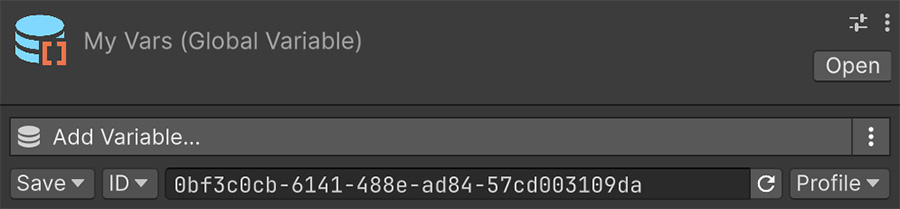
The Variable menu item creates a Global Variable asset
The Create menu calls it Variable; the Inspector header calls it Global Variable. This manual uses Global Variable to distinguish the asset from the Local Variable component.
Creating and registering#
- Right-click in the Project window where you want the asset.
- Choose
Create→Visual Script→Variable. - Give it a descriptive name.
Visual Script registers the asset automatically in the Variables section of the Settings window. This list loads Global Variables at startup; an asset missing from it is unavailable to the running game.
Visual Script rebuilds the list whenever assets are imported. If a Global Variable is missing, select Refresh above the list to rescan the project.
Entries#
Like a Local Variable, the asset holds an ordered list of entries, each with an optional Tag and a typed Value. Both containers support the same types, list operations, and Signals.
Because the asset is shared, use tags that remain unambiguous across the project. Prefer score over a generic name such as count.
Grouping#
A Global Variable can hold multiple values. Group related state into separate assets, such as progression, settings, and the current run, so the Settings list remains navigable.
The save system saves each asset as a unit. Keep state in the same asset when it should persist together.
Saving#
Unlike Local Variables, which need a Remember component, a Global Variable has saving built into it. The options are on the asset itself, at the bottom of the Inspector:
| Option | Controls |
|---|---|
| Save | Whether the values are written to disk at all. |
| ID | The identifier the save file uses — either an ID you set, or a Random ID. |
| Location | Whether the data belongs to one save profile or is Shared across all of them. |
Choose Profile for game state that belongs to one save, such as score, progress, or inventory. Choose Shared for audio settings, unlocked extras, or high scores that should remain available when the player starts a new game.
Don't change the ID after shipping
The save system uses the ID to find the asset's saved data. Changing it prevents the asset from loading values saved under the previous ID. Choose a stable ID before shipping.
Random ID is regenerated every time the game starts, so an asset set to it never finds its own saved data. Leave the mode on ID for anything you intend to persist.
Play mode#
The game works on a copy of the authored entries, so runtime changes don't affect the asset on disk. The Inspector shows live values while the game runs, and the authored values return when Play mode ends.
To keep a runtime change between sessions, save the values using Save & Load.
When not to use one#
Keep a value local when only one system reads and writes it. Sharing a variable across the project gives more systems access to it, which can make unexpected writes harder to trace.
If you can't identify which systems write to a variable, review whether they all need to share it.
Where to go next#
- Local Variables — store state on one object instead of across the project.
- Variables as lists — use the list operations shared by both container types.
- Save settings — choose where persisted values are written.