

Save settings#
Save settings control how your game writes and restores saved state. They apply to the entire project and ship in the build. Configure them in the Settings window, under the section named after your project.
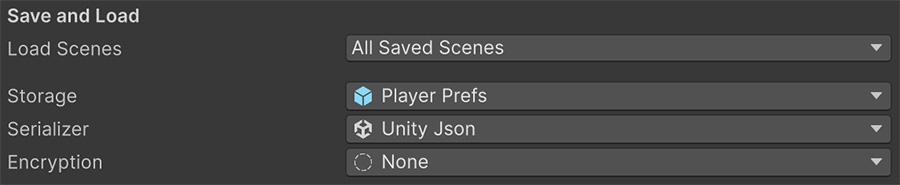
The settings control which scenes load, where bytes are written, which serializer formats them, and whether the output is obscured.
Load policy#
Choose which scenes to restore when you load a profile:
| Policy | Loads |
|---|---|
| All Saved Scenes | Every scene that was open when the save was written, including additive ones. |
| Saved Active Scene | Only the scene that was active. |
| Specific Scene | Always the same scene, whatever the save recorded. |
All Saved Scenes is the default and the right choice for games built from additive scenes. Specific Scene suits games where saves are always resumed from a fixed hub.
Storage#
Choose where the save system writes its data:
| Storage | Writes to |
|---|---|
| Player Prefs | Unity's player preferences — the registry on Windows, a plist on macOS. |
| Persistent File | A file in the platform's persistent data path. |
Player Prefs is the default and suits prototypes or small saves. Players can find and edit it, and some platforms limit its size.
Use Persistent File for a release build. The resulting files can be backed up, copied between machines, and deleted by the player.
Switching storage abandons existing saves
Data written to Player Prefs isn't visible to the file backend, or the other way round. Changing the storage mid-project means existing saves stop being found. Decide before you ship.
Serializer#
The serializer formats the saved data. The built-in Unity JSON option uses Unity's serialization and handles the types Visual Script supports.
Programmers can add other formats — see Custom serializers.
Encryption#
Choose whether to obscure the stored data:
| Option | Does |
|---|---|
| None | Plain, readable output. |
| Caesar | A simple character shift. |
| XOR | A key-based byte transformation. |
None is the default and keeps save files readable during development. Inspecting the stored values helps distinguish serialization problems from restore logic.
This is obfuscation, not security
Caesar and XOR obscure the data but don't provide cryptographic protection. Any required key ships inside the game, where a player can inspect it.
Use these options to discourage casual editing. Validate competitive or monetized state on a server instead of trusting a local save.
AES-256 module#
The free AES256 module adds AES-256 encryption to the same dropdown. After installation, AES256 appears beside the built-in options.
AES-256 raises the cost of reading or modifying a save file. However, a key embedded in the build can still be extracted, so this does not replace server-side validation for valuable data.
Programmers can also add their own schemes. See Custom encryption.
A practical configuration#
| Stage | Storage | Encryption |
|---|---|---|
| Development | Persistent File | None — keeps the output readable |
| Testing | Persistent File | The one you intend to ship with |
| Release | Persistent File | The option validated during testing |
Changing encryption can make existing saves unreadable. Select and test the release configuration before shipping, while you can still replace development saves.
Where to go next#
- Profiles — select the slots that receive this data.
- Extending the save system — add custom storage, serializers, and encryption.
- Settings window — configure the remaining project settings.