

uGUI#
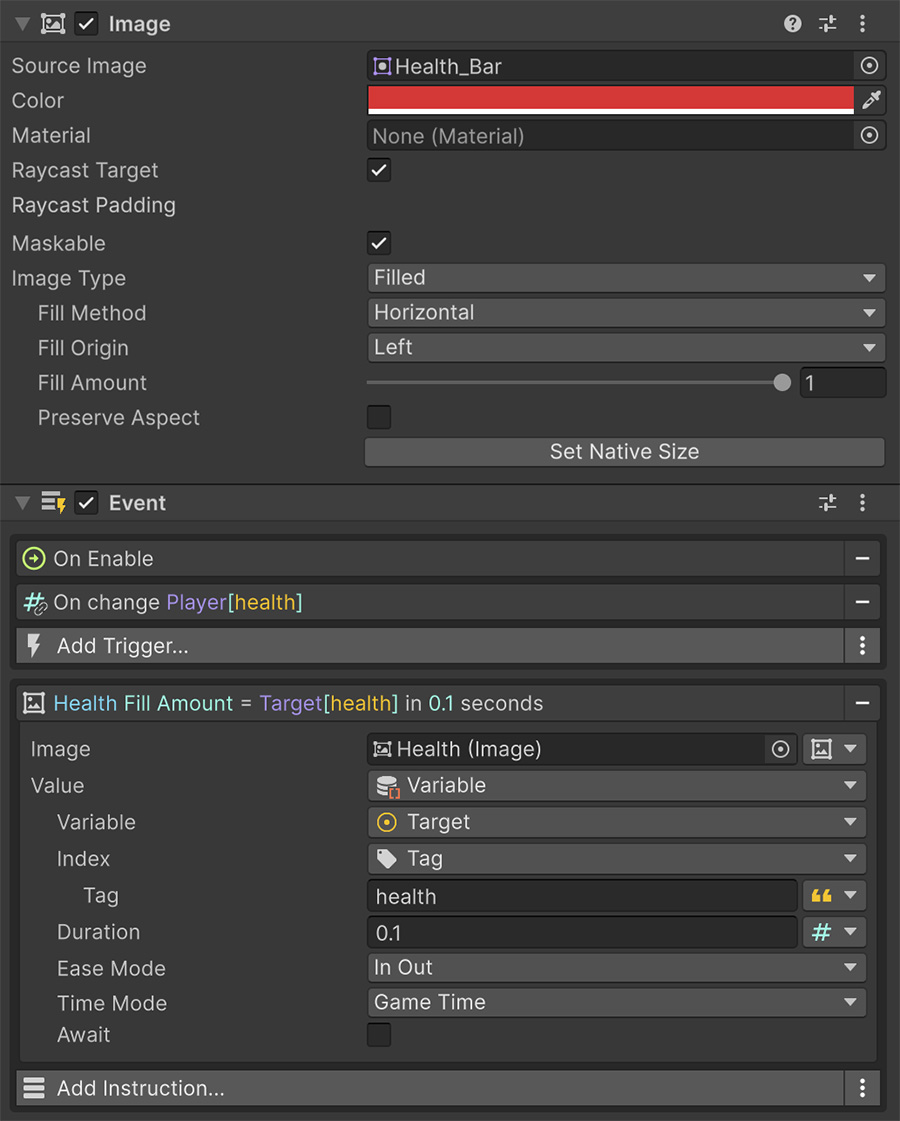
Visual Script connects to uGUI through its existing components, including canvases, rect transforms, Text, and TextMesh Pro. Add Events to read control values, respond to interaction, and update your UI.
Text#
Visual Script exposes Unity's legacy Text and TextMesh Pro components separately. Set Text Value writes Text, while Set TMP Text Value writes TextMesh Pro. Each has a matching String Signal and comparison Condition under UI → Graphic.
TextMesh Pro also exposes Max Visible Characters, along with limits for visible words and lines. For a typewriter effect, assign the full string, set the visible count to 0, then increase it one character at a time.
Text characters reveal a typewriter effect
- Set TMP Text Value to the whole line.
- Set TMP Text Max Visible Characters to
0. - A While loop, running while the visible count is below the line's length: Wait for Seconds
0.03, then set the visible count to itself plus one.
The label keeps the full text for layout while revealing its characters. This preserves line wrapping as the visible count increases.
Buttons and interactive elements#
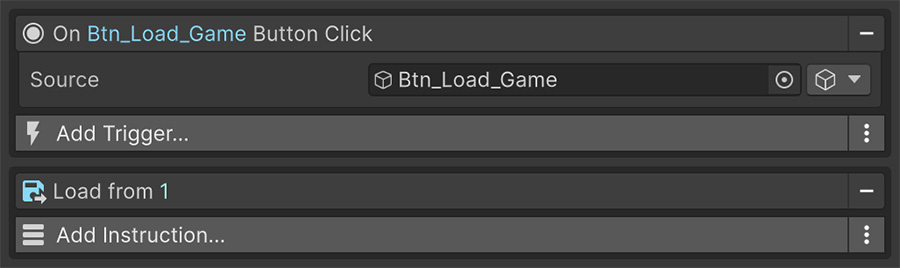
Each Unity interaction component has a Trigger under UI in the dropdown. The Trigger observes the button, slider, or other element as its source, so its Event can live on another game object.
| Trigger | Fires when |
|---|---|
| On Button Click | A Button is clicked. |
| On Toggle Change | A Toggle is turned on or off. |
| On Slider Change | A Slider's value moves. |
| On Dropdown Change | A Dropdown selects another option. |
| On Input Field Change | An Input Field's text changes. |
| On Pointer | The element receives a pointer or navigation event. |
The dropdown and input field Triggers cover both the legacy components and their TextMesh Pro counterparts. In all of them Target is the element that fired, so an Event placed elsewhere can still point its Instructions back at it.
When to fire#
On Toggle Change, On Input Field Change, and On Pointer each provide a When field to select the interaction.
Set On Toggle Change to Any, Turned On, or Turned Off. The last two let you respond to one state without adding an If.
On Input Field Change picks the moment the text is read:
| When | Fires |
|---|---|
| Value Changed | On every keystroke. |
| End Edit | When editing finishes or the field loses focus. |
| Submit | When the player confirms the field. |
On Pointer covers the rest: Click, Down, Up, Enter, Exit, Select, Deselect, Submit and Cancel. Enter and Exit track hovering. Select, Deselect, Submit, and Cancel support gamepad and keyboard navigation.
On Pointer needs a raycast target
These events come from the Event System, so the object needs a Graphic — an image, a label — with Raycast Target enabled. A bare rect transform receives nothing.
Reading the pointer#
Three Signals under Input report what the UI is doing:
| Signal | Reports |
|---|---|
| Is Pointer over UI | Whether the pointer is on top of a UI element. |
| Game Object under Cursor UI | The topmost UI element under the mouse cursor. |
| Selected Game Object | The element currently selected. |
Check Is Pointer over UI before processing a world interaction to prevent a HUD click from also affecting an object behind it.
Lists#
To build an inventory grid, save-slot menu, or leaderboard, use Foreach over a collection. Instantiate and populate one entry per item, using the loop's Index parameter to identify it.
Foreach builds a save-slot menu
- Foreach over a number range from
0to4. - Instantiate the slot prefab, storing the new entry into a variable through the Instruction's Set field.
- An If on Has Saved Game, using the Index as the profile number, decides whether to show a date or the word Empty.
World-space UI#
A world-space canvas uses the same uGUI Triggers and bindings as a screen-space canvas. Use it for nameplates, damage numbers, and controls placed in the game world.
Bindings reduce repeated nameplate updates
An On Update Event on every enemy nameplate writes each label every frame, including frames when the values stay unchanged.
Use On Number Change with initial emit enabled to set each label at startup and update it when its value changes. See Bindings.
Where to go next#
- UI Toolkit — compare UXML runtime elements with uGUI components.
- Bindings — update displayed state without polling.
- Collections — provide data for generated lists.