

UI Toolkit#
Visual Script provides a set of runtime UI Toolkit elements that can run Instructions directly, so a UXML document can drive game logic without a C# controller in between.
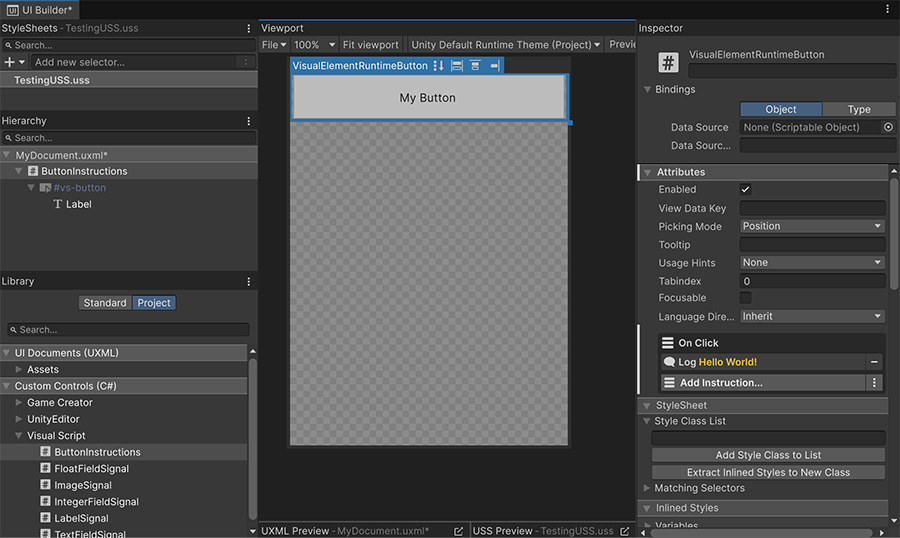
Runtime elements#
These appear in the UI Builder's library alongside Unity's own controls:
| Element | Is |
|---|---|
| ButtonInstructions | A button that runs a list of Instructions when clicked. |
| LabelSignal | A label whose text comes from a Signal. |
| ImageSignal | An image whose sprite comes from a Signal. |
| TextFieldSignal | A text field that writes what's typed into a String Signal. |
| IntegerFieldSignal | An integer field that writes its value into an Integer Signal. |
| FloatFieldSignal | A float field that writes its value into a Number Signal. |
The suffix identifies each element's role: Instructions runs logic, while Signal reads or writes a value.
Filter the Visual Script group by role
The library puts all six in a Visual Script group, and typing signal into its filter brings back five of them at once.
Each is a standard UI Toolkit element that accepts USS styles, uses flexbox layout, and works in UI Builder. The added attributes connect it to Signals or Instructions.
Instructions from UXML#
ButtonInstructions carries its own Instructions list, exposed as an on-click attribute and edited in the Inspector when the element is selected.
This lets a UI Builder document contain its button layout and Instruction lists without a separate controller script.
A pause menu
- Resume → set the time scale to
1, hide the document - Save → save profile
0 - Quit → load the main menu scene
Each button stores the Instructions for its action in the UXML document.
Button Instructions run in Play mode
Instructions and Signals run only in Play mode when the document is attached to a scene. Clicking a button in UI Builder doesn't run its Instructions.
Labels and images show a Signal preview while you author the document, so you can see their content in UI Builder.
Which way the data flows#
The Signal elements either display a value or write one when the player edits a field.
LabelSignal and ImageSignal read. They subscribe to a Signal in place of a literal value and refresh when it changes. A label pointed at a score variable therefore stays current without an On Update Event.
The three field elements write. Each carries a set-value attribute with a Set Signal and writes edits to it. These fields don't read the Signal back, so initialize their displayed values when the panel opens.
These Signals have no Source or Target
A visual element isn't a game object, so the elements run their Signals with an empty context. Point them at Global Variables, or at a Local Variable through an explicit scene reference — references resolved through Self or Target return no object.
Styling#
Visual Script's elements use standard UI Toolkit styling. They accept USS classes, inherit styles from parents, and respond to pseudo-states.
They arrive unstyled: the stylesheet attached to them is empty, so they take their look from your document. The three fields extend Unity's own TextField, IntegerField and FloatField and inherit the default field styling that comes with them.
uGUI or UI Toolkit#
Both systems can coexist in one project. Select one per screen; for example, use uGUI for a world-space health bar and UI Toolkit for a settings menu. User interface compares them.
Where to go next#
- uGUI — connect Events to Unity's component-based UI system.
- User interface — compare patterns and trade-offs across both systems.
- Bindings — update a label when its value changes.