

Finding what you need#
Search the same Registry library from the Unity editor or visualscript.dev. The editor focuses on the current project, while the website exposes source code and account actions.
From the editor#
Open the Visual Script Settings window from the Visual Script button in Unity's main toolbar or Window → Visual Script → Settings. Select the Registry section.
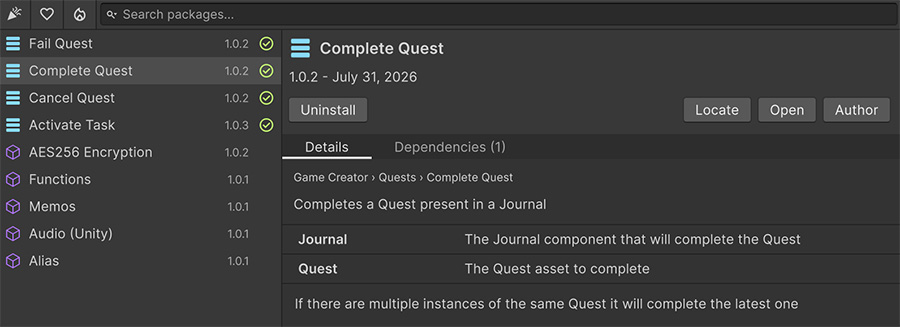
The toolbar contains three views and a search field:
| Control | Shows |
|---|---|
| New | Recently created and recently updated packages. |
| Likes | The most liked packages this week. |
| Trends | What's being downloaded right now. |
| Search | Free-text search across titles, descriptions, categories, and keywords. |
Use the search field's dropdown to choose a package kind: Instructions, Conditions, Triggers, Signals, Modules, or Lists. Choose All to include every kind.
Select a result to open it in the adjacent panel. The panel contains Details and Dependencies tabs, with package actions across the top:
| Action | Does |
|---|---|
| Install | Downloads it into your project. See Installing. |
| Update | Appears only when the installed copy is older than the published one. |
| Uninstall | Appears only when it's already installed. |
| Locate | Selects the installed file in the Project window. |
| Open | Opens the package's page on the website. |
| Author | Opens the author's profile and their other published packages. |
| Docs | Opens the author's external documentation, when the package declares one. |
Visual Script remembers your last search between sessions, so you can return to it when you reopen the window.
From the website#
visualscript.dev provides the same search and type filter. It also provides three discovery views:
| View | Shows |
|---|---|
| New | New and recently updated packages. |
| Trends | Trending packages, weighted toward recent downloads. |
| Likes | The most liked packages. |
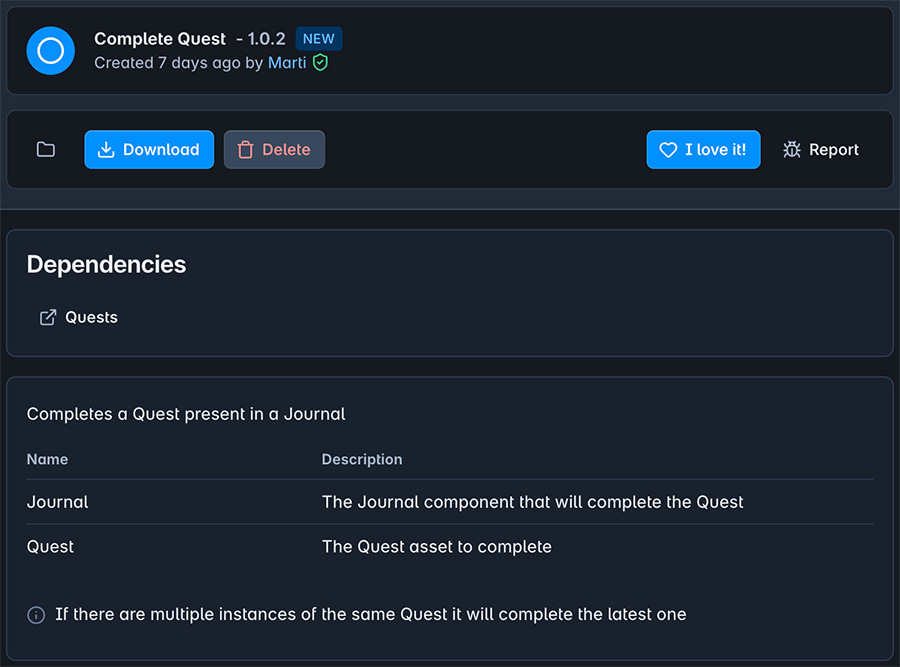
Each package page includes the editor's listing details, the full source code, the author's other work, and the Like button.
Reading a listing#
The attributes on the package class populate its listing. Inspect these fields before you install a package:
| On the listing | Tells you |
|---|---|
| Title and description | What it does. |
| Version | Which release you're about to install. |
| Author | Who wrote it — their profile lists everything else they've shared. |
| Category | Where it appears in the editor's dropdowns once installed. |
| Parameters | Every configurable field, described one by one. |
| Notes | Limitations or usage details from the author. |
| Dependencies | The assets, Unity modules, or other packages it needs to compile, each with a link. |
| Images | Screenshots or diagrams, when the author added them. |
| Read / Write | For Signals, whether the value can be read, written, or both. |
Badges#
Badges provide status and provenance that may not appear in the description:
| Badge | Means |
|---|---|
| New | Created or updated recently. |
| Trending | Marked as trending based on recent downloads. |
| Favorite | Marked as a favorite based on likes. |
| Made with AI | The author declared the package as AI-generated. |
| Trusted | Shown next to the author's name — a verified community contributor. |
| Secret | A list that isn't indexed publicly. Anyone with the link can still use it. |
| Broken | Flagged after repeated reports of problems. Inspect the source and dependencies before using it. |
Judging what to install#
Registry scripts are community code that Unity compiles in your project. Review these signals before you install one:
- Read the source. Community scripts are single C# files that the website displays in full. Check the implementation before you depend on it.
- Treat downloads and likes as adoption signals. They don't guarantee compatibility with your Unity version or project.
- Check declared dependencies. Confirm that your project contains each listed asset or module before installation.
If a package is broken or inappropriate, open the ⋮ menu on its page and choose Report. Reports inform moderation, and repeated reports can add the Broken badge.
Likes affect discovery#
Likes affect the Likes view, the Favorite badge, and search ranking. They also tell authors which packages remain useful.
Like packages that work for you
Open the package on visualscript.dev, or press Open in the editor's Registry inspector, then press Like. This feeds the Registry's discovery signals without changing the installed package.
Where to go next#
- Installing — add a package to your project.
- Lists — install a set of related nodes together.
- Contributing — publish a node when the Registry doesn't contain the behavior you need.