

Input Actions#
Unity's Input Action assets connect named actions, such as jumping or interacting, to device controls. Use them when controls need rebinding, multiple devices, or runtime context switching.
What Input Actions change#
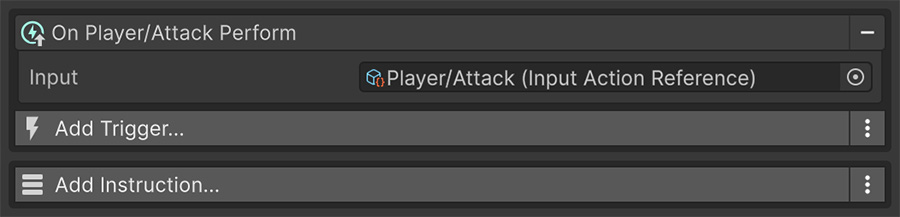
An Input Action gives an operation a name, such as Jump, Interact, or Move, and binds it to physical controls. Your Events refer to Jump, so changing its binding doesn't require editing each Event.
This separation provides three capabilities:
| Capability | Effect |
|---|---|
| Rebinding | The player changes the binding; your Events don't change at all. |
| Multiple devices | One action can be bound to a key, a button and a stick simultaneously. |
| Context switching | Actions are grouped into maps that can be enabled and disabled together. |
Setting one up#
- Create an Input Action asset with
Create→Input Actions. - Add an action map such as
Gameplay, then add actions inside it. - Bind each action to the controls it should respond to.
- Reference the asset from Visual Script's input Triggers and Signals.
The three action Triggers#
Unity's Input System reports an action's progress in phases, and there's a Trigger for each.
| Trigger | Fires when |
|---|---|
| On Input Action Start | The action begins — the button goes down. |
| On Input Action Perform | The action's interaction completes. |
| On Input Action Cancel | The action ends or is abandoned. |
For a simple button press, Start and Perform happen together. A hold interaction separates them: Start fires on press, Perform fires after the hold duration, and Cancel fires if the player releases early.
Performed waits for the hold duration
- On Input Action Start → show the progress ring
- On Input Action Perform → open the door
- On Input Action Cancel → hide the ring
Configure the hold duration in the Input Action asset. The three Events then respond to its phases without tracking elapsed time themselves.
Reading action values#
Read an action's current Number or Vector2 value through a Signal inside an On Update Event. This lets movement respond to the action's current binding on each frame.
Enabling and disabling#
Four Instructions enable or disable actions:
| Instruction | Affects |
|---|---|
| Enable Input Action | One action. |
| Disable Input Action | One action. |
| Enable Input Map | Every action in a map. |
| Disable Input Map | Every action in a map. |
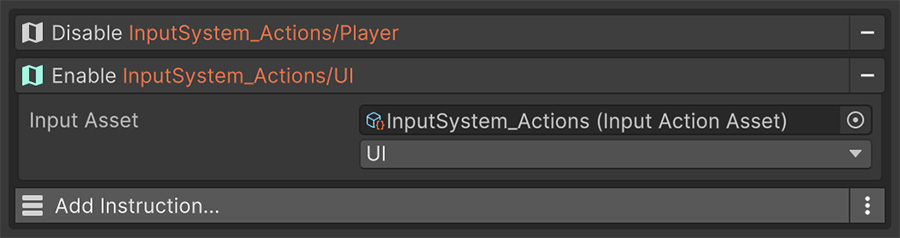
Prefer maps when an entire context changes. Opening a menu can disable Gameplay and enable UI; closing it reverses those actions. Later additions to the Gameplay map follow the same switch automatically.
Disabled actions are silent
A disabled action doesn't fire its Triggers and reports 0. If an input stops responding after a menu closes, check that its action map was re-enabled.
Devices and platforms#
To add a gamepad binding to an existing action, edit the Input Action asset. Events that already reference that action continue to use it.
Use Gamepad Count to check how many controllers are connected. Seconds Since Last Input reports overall input inactivity, which you can use for idle behavior.