

Using Memos#
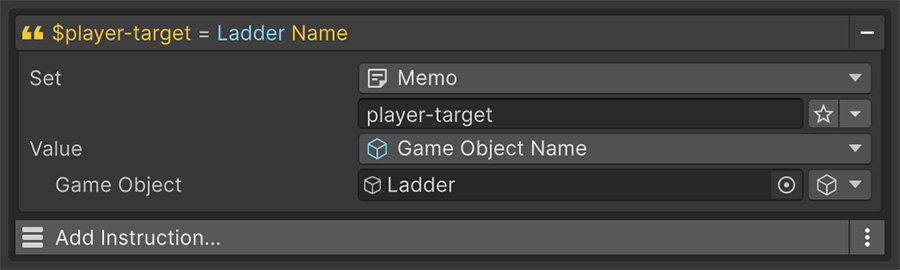
You work with a Memo through the Memo Signal, which sits in the same dropdowns as every other source of a value. Choose it in a Set field to write a value and in a Get field to read one, using the same name in both.
Writing a Memo#
Any Instruction with a Set field can write to a Memo. For a number, start with Set Number:
- Add a Set Number Instruction to an Event.
- Open the dropdown beside its Set field and choose
Variable→Memo. - Type a name, such as
combo. - Enter the value to store.
The Instruction's title now reads $combo = 5. The $ marks a Memo wherever a field shows its name, so you can spot one while reading through an Event.
The Memo doesn't exist until this Instruction runs. Instructions that produce a value, such as Find by Name and Instantiate, can also write to a Memo through their own Set field.
Reading a Memo#
To read the value, open the dropdown beside any field of that type, choose Variable → Memo, and type the same name. The field reads the Memo's current value each time the Instruction runs.
For example, an If with Compare Numbers can check whether $combo is above 10, so the Event only plays a finishing move once the player has earned it.
Names#
A name follows the same rules as a Variable tag:
- It's normalized. Letters, digits,
-, and_stay as entered; anything else, including spaces, becomes-. Enterlast hitand the name becomeslast-hit. - It's case-sensitive.
Comboandcomboare two different Memos.
Nothing checks that a name you read has been written, so a typo gives you an empty value rather than an error. A blank name is still a name, so every Memo field left blank shares one value. The name field is locked during Play mode.
Favorite names#
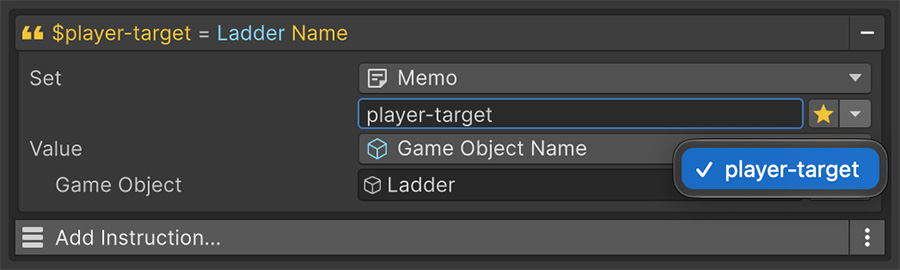
To avoid retyping a name, click the star inside the name field to mark it as a favorite. The arrow beside the field then lists your favorites, so you can pick a name instead of typing it.
Favorites stay on your machine
Favorites are an editor preference, so your teammates won't see yours. They don't change how Memos behave in the game.
Types#
You don't choose a type in advance: a Memo takes the type of the value written to it. The Memo Signal is available for Number, String, Bool, Vector2, Vector3, Quaternion, Color, Game Object, Sprite, Texture, Material, Animation Clip, Audio Resource, and Scriptable Object fields.
For lists of objects, there's a collection version under Variables → Memo. Write it with Set Game Objects to keep the result of a search, then loop over it later with Foreach.
Reading a Memo as another type converts the value when a conversion exists. The number 5 read by a String field gives 5, and the String 12 read by a Number field gives 12. When the value can't be converted, you get an empty value, so the String hello reads as 0.
Writing another type replaces the Memo
If $combo holds a number and a Set String writes to it, $combo is now a String. Visual Script doesn't warn you, so the mistake usually shows up later as a wrong value.
Reacting to a change#
Memos report their changes, so the change Triggers work on them directly. Add a Trigger such as On Number Change or On Game Object Change, point it at the Memo, and the Event runs whenever the value becomes something different. The first write counts as a change, while writing the value a Memo already holds doesn't run the Event.
A label follows the last enemy you hit
- A weapon's On Trigger Enter Event uses Set Game Object to write Target to a Memo named
last-hit. - An Event on a UI panel has an On Game Object Change Trigger watching
$last-hit, and it updates a label with that enemy's name.
The weapon doesn't need a reference to the panel, and the panel doesn't need a reference to the weapon.
Seeing your Memos#
During Play mode, open Window → Visual Script → Settings and select Memos. The section lists every Memo that's been written, with its name and current value, and it updates as values change. The fields are read-only.

Outside Play mode, the section shows Memos are only available in Play Mode, because Memos only exist while the game runs.
Check this list when an Event reads an empty value. A Memo written under a misspelled name appears as its own entry.
How long a Memo lasts#
A Memo lasts until the game closes or Play mode ends. Here's what happens to it along the way:
| Moment | Memo |
|---|---|
| Another scene loads | Keeps its value. |
| Save Profile runs | Isn't written to the save. |
| Load Profile or Unload Profile runs | Keeps its value. |
| The game closes or Play mode ends | Disappears. |
Starting a new game doesn't clear Memos
Memos aren't part of the save system, so a value from the previous playthrough is still there after Unload Profile. Write fresh values to the Memos your game relies on when a new game starts. No Instruction deletes a Memo, so overwrite it instead.
A Memo holding a game object reads as empty once that object is destroyed, which includes objects in a scene that unloads. Instructions pointing at that Memo then have nothing to act on.
Where to go next#
- Variables — store state that belongs to an object or needs saving.
- Bindings — update health bars, labels, and other reactions when a value changes.
- Save & Load — keep values between play sessions.
- Functions — use a Memo to hand extra values to reusable Instructions.