

Creating a Function#
A Function is an asset in your project, so it isn't tied to any scene. It holds one thing: a list of Instructions that behaves the same way as the list on an Event, running from top to bottom each time something starts it.
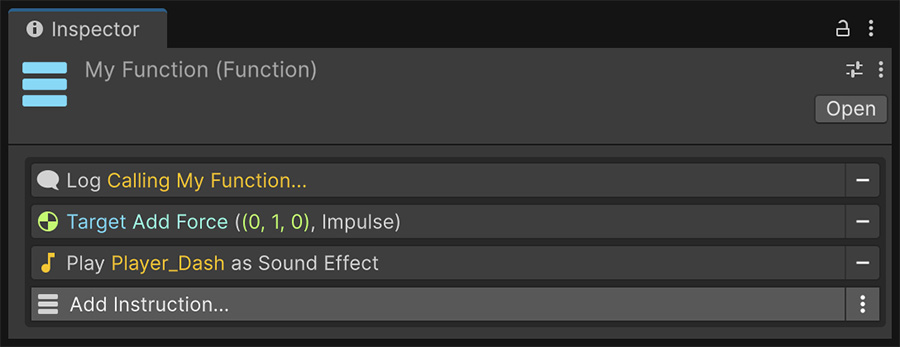
Creating the asset#
- Right-click in the Project window and select
Create→Visual Script→Function. - Name the asset after what it does, such as
Collect Pickup. - Select the asset. Its Inspector shows an empty Instructions list.
- Add the Instructions you want it to run, in order.
You can keep the asset anywhere under Assets. A Function has no Triggers, so nothing happens until something runs it, which Running a Function covers next.
Add a note
To remember what a Function is for, give it a note: right-click its header and choose Edit Note.... The note shows above its Instructions and works the same way as on an Event; see Adding notes to Events.
Source and Target inside a Function#
An asset has no game object of its own, so inside a Function, Source and Target mean whatever the caller passed in:
| Inside a Function | Refers to | By default |
|---|---|---|
| Source | The object passed as Source. | The object holding the calling Event. |
| Target | The object passed as Target. | The calling Event's Target. |
Write your Instructions against these two, because an asset can't store a reference to an object in a scene. This is also what makes a Function reusable: nothing inside it names a specific character or door.
To reach a Local Variable, point the Variable Signal at Source or Target. Global Variables work as usual, since they aren't tied to a game object.
A hit flash for anything with a sprite
A Function named Hit Flash holds three Instructions:
- Set Sprite Renderer Color on Target, to red.
- Wait for Seconds, with
0.1seconds. - Set Sprite Renderer Color on Target, back to white.
A bullet runs it from an On Trigger Enter Event, where Target is whatever the bullet hit. The player, a zombie, and a crate all flash without any of them knowing about the Function.
Passing other values#
Source and Target are the only values a Function receives, and it doesn't return a result. To hand over anything else, store it somewhere both sides can read, such as a Variable or a Memo.
A damage amount travels through a Memo
- Before Run Function, a Set Number Instruction writes
25to a Memo nameddamage. - Inside the
Take DamageFunction, a Set Number Instruction subtracts$damagefrom thehealthvariable on Target.
A bullet writes 25 and a grenade writes 80, and both share one Function.
A Memo is shared across the whole game, so write it right before the call and read it at the start of the Function. If the value belongs to a specific object, keep it in a Local Variable on Source instead.
What you can put inside#
A Function accepts any Instruction, including If, Foreach, Wait for Seconds, and Run Function to call another Function.
Exit ends the Function early, and the caller carries on with its next Instruction. Use it at the top of a Function to skip the sequence when something isn't ready, such as a target that's already dead.
Where to go next#
- Running a Function — start your Function and choose what it receives.
- Control flow — branch, loop, wait, and exit inside the list.
- Local Variables — store values on the objects a Function receives.