

Memos#
Summary
A Memo is a temporary value you read and write by name from any Event, with nothing to set up first. Use Memos for in-between values the game only needs for a while, such as the door the player walked through or the last enemy they hit.
What Memos solve#
Some values only matter for a short time. One Event works out which door the player used, another Event needs that answer a moment later, and then nothing ever looks at it again.
You could store it in a Variable, but a Variable needs a home first: a Local Variable component or a Global Variable asset, plus an entry with a tag. That setup is worth it for state that belongs to your game. For a throwaway value, it leaves you with components and assets to name, organize, and eventually remove.
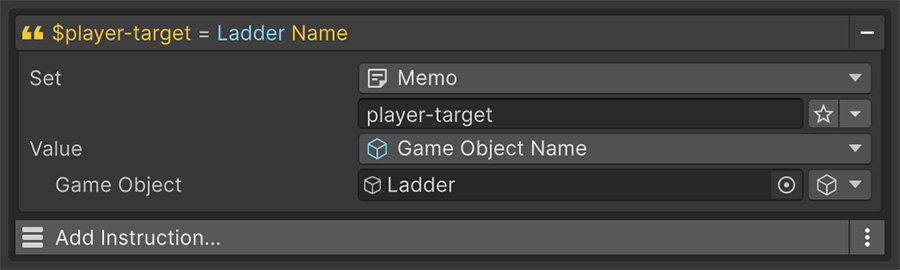
A Memo has no setup. Type a name into a Signal field, and that name holds a value any Event in the game can read.
The core idea#
Think of Memos as sticky notes on one shared board. A note appears the first time something writes on it, and anything can read it by name:
| When an Event | Visual Script |
|---|---|
| Writes to a new name | Creates the Memo and gives it the type of the value. |
| Writes to an existing name | Replaces the value. |
| Reads a name | Returns the current value, whichever Event or scene wrote it. |
| Reads a name nothing has written | Returns an empty value, such as 0 or blank text, without an error. |
Here's how that looks when two scenes need to share one small piece of information:
The next scene knows which door you used
- On the door, add an Event with an On Trigger Enter Trigger.
- Add a Set String Instruction. Point its Set field at a Memo named
arrival-doorand enternorth-gateas the value. - Add a Load Scene Instruction.
- In the next scene, an On Start Event uses an If with Compare Strings to check
$arrival-door, then moves the player to the matching spawn point.
The Memo survives the scene load, and you didn't create an asset for a value that only matters during the transition.
Memos or Variables#
Memos don't replace Variables. The choice comes down to how long a value should live and who it belongs to:
| Property | Memo | Local Variable | Global Variable |
|---|---|---|---|
| Set up with | A name typed into a field | A component on a game object | An asset in the project |
| Copies | One per name | One per object | One per asset |
| Lasts | Until the game closes | Until its object is destroyed | Until the game closes |
| Can be saved | No | Yes, with Remember | Yes, from the asset |
| Visible before Play mode | No | Yes | Yes |
Use a Memo for a temporary value that only needs one copy. Use a Local Variable when each object needs its own value, such as an enemy's health. Use a Global Variable for game state you want to save or see before pressing Play, such as the score.
One name holds one value across the whole game
If ten enemies each write their target to a Memo named target, they overwrite each other, and every enemy reads whichever write came last. Give each enemy its own value with a Local Variable instead.
Try it#
- Build the door example above with two scenes, and check that the value arrives in the second one.
- Write to a Memo from one game object and read it from another. Neither object needs a reference to the other.
- Open the Memos section of the Settings window in Play mode, and watch values appear as Events write them.
- Add an On Number Change Trigger watching a Memo, and log a message whenever the value changes.
- Read a Memo with a misspelled name, and confirm you get an empty value instead of an error.
Where to go next#
- Installation — add the module to your project.
- Using Memos — write, read, and inspect Memos, and learn how long they last.
- Variables — store state that belongs to an object or needs saving.