

Using Aliases#
Using an Alias takes two steps: add an Alias component to the object you want to find, then choose the Alias Signal wherever a field asks for a game object. The two sides only share the ID, so you can rename or replace the object without touching the Events that find it.

Giving an object an ID#
- Select the game object.
- Press Add Component and choose
Visual Script→Alias. - Change the component's dropdown from Random ID to ID.
- Enter an ID, such as
Player.
A new Alias starts on Random ID, so the text field doesn't appear until step 3. A game object can hold one Alias, which means it has one ID at a time.
IDs follow two rules:
- They're normalized. Letters, digits,
-, and_stay as entered; anything else, including spaces, becomes-. EnterNorth Gateand the ID becomesNorth-Gate. - They're case-sensitive.
Playerandplayerare two different IDs.
Finding the object#
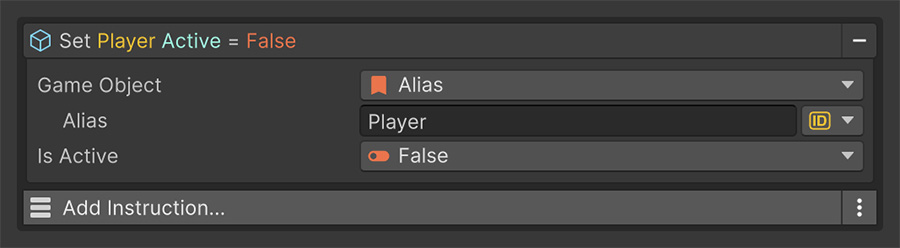
Open the dropdown beside any Game Object field, choose Alias → Alias, and enter the ID. The Signal looks up the object each time the Instruction runs, so it gets whichever object holds the ID at that moment.
For example, a Set Active Instruction can use the Alias Signal with the ID Exit-Door in its Game Object field. That Instruction can sit in a prefab or a Function, since it only stores the text.
Nothing checks the ID in advance. If no object holds it, the Signal returns nothing and the module doesn't log an error, so a typo shows up as an Instruction with nothing to act on.
The ID doesn't have to be typed, either. It's a String Signal, so it can come from a variable:
The player respawns at the last checkpoint
- Give each checkpoint an Alias with its own ID, such as
Checkpoint-1andCheckpoint-2. - On each checkpoint, an On Trigger Enter Event uses Set String to write the Alias ID of Source to a Global Variable entry tagged
last-checkpoint. - When the player dies, Set Transform Position moves them to the Transform Position of the Alias Signal, which reads its ID from
last-checkpoint.
The entry holds plain text, so if that Global Variable saves, the next session can still find the checkpoint by its ID.
Moving between scenes#
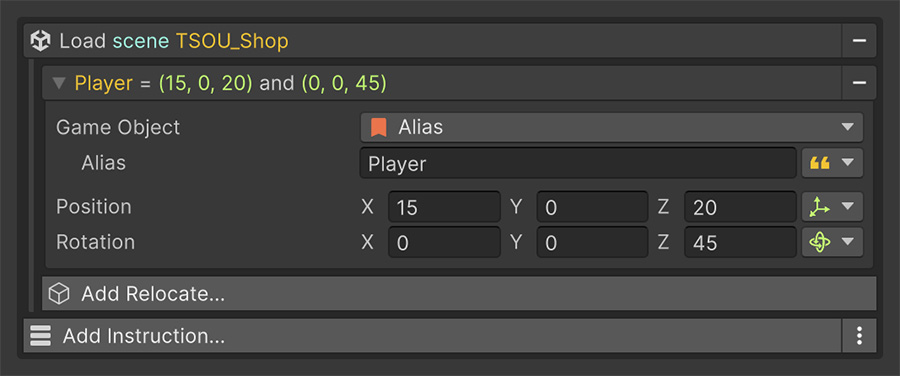
The Alias Signal can name an object in a scene that isn't open yet, because it only looks up the ID when the Instruction reads it. This makes it a good fit for the Relocates list of Load Scene, which runs after the new scene has loaded. Source and Target don't refer to any object there, so an ID is often the only way to name what you want to move.
A door into the cave
In both the
ForestandCavescenes, give the player an Alias with the IDPlayer.In
Cave, create an empty game object at the entrance, facing into the cave, and give it an Alias with the IDCave-Entrance.In
Forest, add Load Scene to the door's Event, chooseCave, and add one relocate:- Game Object — the Alias Signal with the ID
Player - Position — Transform Position, with its Transform set to the Alias Signal with the ID
Cave-Entrance - Rotation — Transform Rotation, with its Transform set the same way
- Game Object — the Alias Signal with the ID
When Cave has loaded, both IDs point at objects in the new scene, and the player appears at the entrance.
Copies of a prefab#
A fixed ID suits one object, but every copy of a prefab would ask for the same ID. The component's dropdown decides where the ID comes from:
| Mode | ID comes from | Suits |
|---|---|---|
| ID | The text you enter. | An object your game knows by name, such as the player or a checkpoint. |
| Random ID | A value generated each time an object becomes active for the first time. | Copies of a prefab, where a fixed ID would clash. |
You can't know a generated ID in advance, so read it with the Alias ID Signal under Alias → Alias ID. It's different every time the game runs, so a saved one won't find the object in the next session.
When two objects want one ID#
Only one object can hold an ID at a time. The first to become active keeps it, and the second logs an error in the Console naming both objects:
Duplicate Alias ID = Player. 'Player (1)' not set because 'Player' uses it
The second object stays out of the lookup, even if the first is destroyed later. The Inspector doesn't warn you about a clash while you're editing, so check the Console when an ID finds the wrong object or none.
A clash needs both objects to exist together, as with two copies of a prefab or two scenes loaded with Additive. Scenes loaded one after the other with Single can each have their own Player.
Changing an ID during the game#
Use the Change Alias ID Instruction, under Alias, to give an object a new ID. Its Alias field selects the object and its ID field sets the new text. Writing to the Alias ID Signal with Set String does the same thing.
The player switches characters
Two characters hold the IDs Player and Companion. Add three Change Alias ID Instructions, each using the Alias Signal in its Alias field:
- Change
PlayertoSwapping, which freesPlayer. - Change
CompaniontoPlayer. - Change
SwappingtoCompanion.
Everything that reads Player now gets the other character, and none of those Events had to change.
Free an ID before you reuse it
If you skip the first step above, the second character's request fails with the duplicate error. When the first character then gives up Player, the ID points at nothing, because the failed request isn't retried.
To react when an ID moves to another object, add an On Game Object Change Trigger watching the Alias Signal. For example, a camera rig can pick up its new target after the swap.
How long an ID lasts#
An ID stays with its object from the moment the object first becomes active until it's destroyed:
| Moment | The ID |
|---|---|
| The object becomes active for the first time | Points at the object. |
| The object is deactivated | Keeps pointing at the object. |
| The object is destroyed, including when its scene unloads | Is free for another object. |
A change made with Change Alias ID ends with the object, so a scene that loads again starts with the IDs set in the Inspector.
An object that starts inactive can't be found yet
Unity doesn't wake a game object until it's active for the first time, so its Alias hasn't listed its ID. If a menu has to start hidden, leave it active in the scene and hide it with Set Active from an On Start Event. It lists its ID first, and it stays findable while it's hidden.
To check what an object holds, select it during Play mode. The Alias component shows the current ID in a read-only field, including a generated one.
Where to go next#
- Game Object Signals — compare the other ways of choosing an object.
- Scenes — load scenes and relocate objects after the load.
- Bindings — run an Event when a Signal's value changes.
- Functions — reuse Instructions that find their objects by ID.