

Audio Source Volume#
Audio Source Volume keeps an Audio Source's volume in step with one Visual Script channel and with Master. It only changes the volume, so the source still plays, loops, and positions itself the way you configured it.
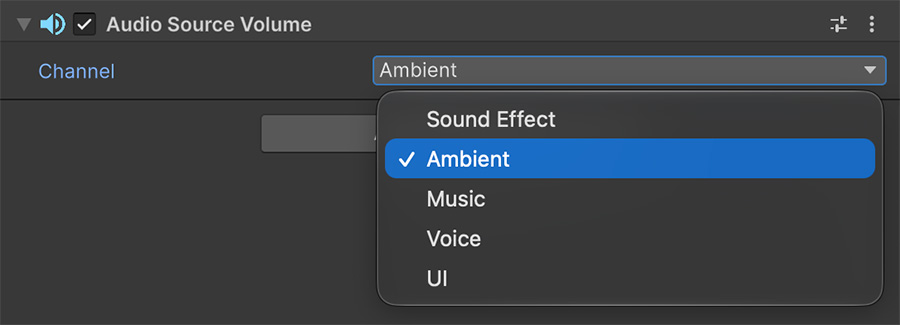
Adding the component#
- Select the game object with the Audio Source.
- Choose
Add Component→Visual Script→Audio→Audio Source Volume. - Pick a Channel.
If the game object doesn't have an Audio Source yet, Unity adds one along with the component.
| Field | Controls | By default |
|---|---|---|
| Channel | Which channel the source follows: Sound Effect, Ambient, Music, Voice, or UI. | Ambient |
Choose the channel by what the player should control together. A radio that plays a song belongs on Music if it should follow the music slider, even though it's an object in the world.
How the volume is calculated#
The component multiplies three values and writes the result to the Audio Source:
Audio Source volume * channel volume * master volume
The first value is the Volume you set on the Audio Source in the Inspector. The component reads it once, when the game object wakes up, and treats it as that source's base level.
Volumes multiply together
A campfire authored at a Volume of 0.5, with Ambient at 0.8 and Master at 1, plays at 0.4. Dropping Master to 0.5 brings it down to 0.2.
The volume updates as soon as any channel or Master changes, and once more when the component is enabled. A source that plays on awake therefore starts at the right level, including when the player's saved volumes differ from the defaults.
What it leaves alone#
The component only connects a source to a channel's volume. The source still isn't a sound the Audio Manager knows about, which has a few consequences:
| Feature | With this component |
|---|---|
| Audio Mixer Groups | A channel's mixer group isn't applied. Set the source's Output yourself if it needs one. |
| Stop Instructions | Stop Audio in Channel and the other Stop Instructions don't affect the source. Stop it by disabling the game object. |
| Is Playing Conditions | They don't report the source. |
| Time settings | Slow motion doesn't change the source's pitch. |
The component owns the Volume field
Each time a channel or Master changes, the component writes the source's volume again. Anything else that changes that value during play, such as another script's fade, gets overwritten on the next change.
To set an individual source's level, change its Volume before Play mode. To fade it, fade the channel with Set Audio Channel Volume.
Disabling the component#
While the component is disabled, the source stops following the channel and keeps its most recent volume. When you enable it again, it immediately catches up with the current channel and Master values.
Where to go next#
- Channels — choose channels and connect sliders to the volume Signals.
- Playing a sound — start sounds from Events through the Audio Manager.
- Bindings — keep menu sliders and labels in sync with a channel's volume.