

Using Audio Presets#
Using a preset takes two steps: create the asset and set its values, then select it in the Settings field of each Play Instruction that should sound that way. From then on, you tune those sounds by editing one asset instead of every Event that plays them.
Creating a preset#
- Right-click in the Project window and choose
Create→Visual Script→Audio Preset. - Name the asset after the sounds that share it, such as
Footsteps. - Select it and set its values in the Inspector.
The Inspector shows the same fields as Custom on a Play Instruction, from Loop and Transition down to Location. Playing a sound explains what each one does.
A new preset starts as a 2D sound
A new preset doesn't copy any channel's settings. It plays once, at a Pitch of 1, with Spatial Blend at 0 and Location set to None, so it sounds the same wherever the listener is. For a sound in the world, set Spatial Blend to 1 and choose a Location before you use it.
Selecting it in a Play Instruction#
- Select a Play Instruction, such as Play Sound Effect.
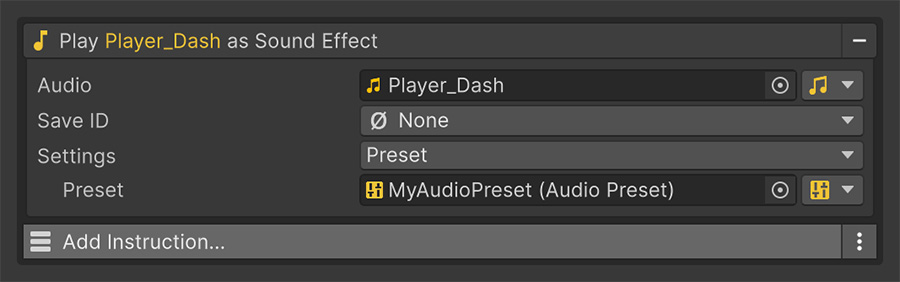
- Set its Settings field to Preset.
- Drag your asset into the Preset field that appears below it.
All five Play Instructions accept the same presets: Play Sound Effect, Play Ambient, Play Music, Play Voice, and Play UI. A preset doesn't choose a channel, though. A Play Ambient that uses Footsteps plays on Ambient, follows that channel's volume and mixer group, and stops with Stop Audio in Channel on Ambient.
If the Preset field is empty, or holds an asset that isn't an Audio Preset, the Instruction plays with the channel's Default settings instead. Nothing appears in the Console, so check the field when a sound suddenly plays in 2D or at the wrong volume.
Settings are read when a sound starts#
The Instruction reads the preset each time it starts a sound, and it reads the preset's fields as if they were its own. Three things follow from that.
Source refers to the Instruction's Event. A new preset's Position reads Source Position, so one Footsteps preset places each step at the character whose Event played it. Has Target and Transform default to Source too.
Signals give a new value for every sound. Set Pitch to the Random Range Signal, between 0.9 and 1.1, and each footstep picks its own pitch.
Sounds already playing keep their settings. An edit to the asset changes the next sound an Instruction plays, not one that's already playing. To hear a change on a looping ambient sound, stop it and play it again.
Tune a preset while the game runs
Change a preset during Play mode, and the next sound uses the new values. Because a preset is an asset, those changes stay after you leave Play mode, unlike changes to the game objects in your scene.
Switching presets during the game#
The Preset field is a Scriptable Object Signal, so it can read the asset from a variable instead of a direct reference. Change the variable, and every Instruction that reads it moves to the other preset together.
Footsteps get quieter while sneaking
- Duplicate
Footstepsand name the copyFootsteps Sneak. Lower its Volume and its Max Distance. - Give the player a Local Variable entry tagged
footsteps, holdingFootsteps. - In the footstep Event, point the Preset field at that entry instead of at the asset.
- When the player crouches, write
Footsteps Sneakto the entry with Set Scriptable Object. WriteFootstepsback when they stand up.
The footstep Event doesn't change, and the steps are quieter for as long as the player is crouching.
A duplicated preset is a separate asset, so later edits to Footsteps don't reach Footsteps Sneak.
Where to go next#
- Playing a sound — learn what each playback setting does.
- Channels — see how a channel's volume and mixer group apply to a sound.
- Local Variables — store the preset a character's sounds should use.