

Using the Registry#
You can browse the Registry from inside the Unity editor or on the visualscript.dev website. Both show the same packages: the editor installs them into your project, and the website lets you read their code, like them, and build lists.
Opening the Registry#
Open the Visual Script Settings window from the Visual Script button in Unity's main toolbar or Window → Visual Script → Settings, then select Registry in the sidebar.
Searching for a package#
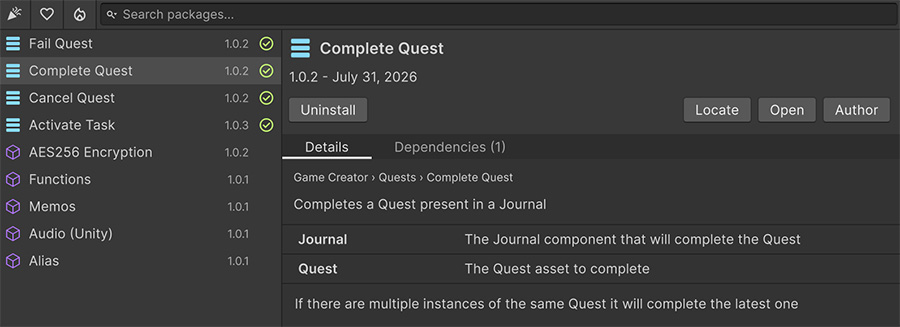
Type what you want the node to do in the search field and press Enter. Searching by task, such as rotate toward or random color, usually finds more than searching by a name. The dropdown in the search field narrows the results to one kind: Instructions, Conditions, Triggers, Signals, Modules, or Lists.
The three buttons beside the search field show new and recently updated packages, the most liked packages this week, and what's trending this week.
Select a result to read about it in the panel on the right. The Details tab explains what the package does, its parameters, and any notes from the author. The Dependencies tab lists other assets or packages it needs to work.
Packages are community code
Each package is a script written by another developer, and Unity compiles it inside your project. Before installing, check the Dependencies tab so you know your project has everything the package needs. On the website, a red bug icon beside a package's title means several users have reported problems with it.
On the website#
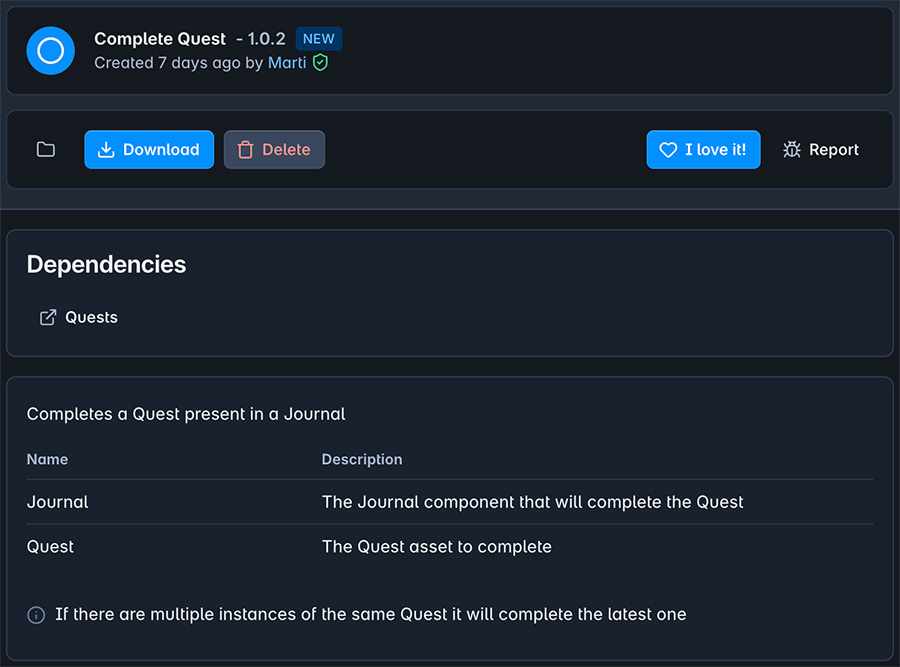
visualscript.dev has the same search, plus pages for new, trending, and most liked packages. Each package page also shows the script's full source code, which is useful when you want to see exactly what a node does before you install it.
Installing a package#
Select a package in the editor and press Install. Visual Script downloads it into your project, Unity compiles it, and the node then appears in the dropdowns alongside the built-in nodes. There's nothing else to set up.
Modules install through Unity's Package Manager instead. Pressing Install on a module hands it to the Package Manager for you.
Alternative
You can also install a node from the website. Press Download on its page and drop the .cs file anywhere inside your project's Assets folder. A module's page shows Copy Git URL instead; paste that URL into Window → Package Manager → + → Install package from git URL.
Finding what you've installed#
Visual Script keeps installed nodes under Assets/Visual Script, with one folder for each kind: Instructions, Conditions, Triggers, and Signals.
Each file is named after the package's ID rather than the node's name. To find a specific one, select it in the Registry and press Locate: Unity highlights the file in the Project window.
These are ordinary files in your project, so version control includes them, and your teammates get them the next time they pull your changes.
Updating and uninstalling#
When an author publishes a newer version of a package you've installed, the Registry shows an Update button next to it. Visual Script never updates a package on its own, so you choose when to replace the old file with the new one.
Updating replaces your edits
You can open and change an installed node's code, but Update replaces the whole file and discards those changes.
Uninstall removes the package from your project after asking you to confirm.
Uninstalling a node that's in use loses its settings
If a scene or prefab still uses the node, those entries become empty, and reinstalling the node doesn't bring back their settings. Remove the node from your Events before you uninstall it.
Lists#
A list is a collection of packages that someone has grouped together, such as nodes for a first-person controller or every node used in a tutorial. Installing a list installs all of its packages at once, so you don't have to search for each one.
Installing a list#
Choose Lists in the search field's dropdown, select a list, and press Install. Each node goes to its usual folder, exactly as if you'd installed it on its own. If you already have some of them, only the missing ones are downloaded.
Lists install from the editor. On the website, a list's page shows every package it contains.
Creating your own list#
With a free account, you can build your own lists on visualscript.dev:
- Open any package page and press the folder button next to Download.
- Choose Create list, enter a name, and choose Public or Secret.
- Open the folder menu again and select your new list to add the package to it.
From then on, add a package by picking your list from that same menu on its page. A checkmark shows which of your lists already contain it, and Manage lists opens all of your lists.
The two options decide who can find the list:
| Scope | Means |
|---|---|
| Public | Anyone can find it in search and install it. |
| Secret | It doesn't appear in search, but anyone with the link can open and install it. Useful for sharing a set of nodes with your team. |
You can change a list's name or scope later with the Rename and Public/Secret buttons on its page.
Copying someone else's list#
You can't change a list that belongs to another user, but you can copy it. Open the list, press the Duplicate button, and confirm with Make a copy. The copy belongs to you, so you can add or remove packages freely. It isn't kept in sync with the original.
Liking and reporting#
If a package works well for you, open its page on the website and press Like. Likes help other people find the most useful packages, and they tell the author their work is being used. In the editor, press Open to go straight to a package's page.
If a package doesn't work or seems inappropriate, press Report on its page instead.
Where to go next#
- Contributing — share your own nodes on the Registry.
- Extending — write a custom node when the Registry doesn't have the one you need.