

Audio Unity#
Summary
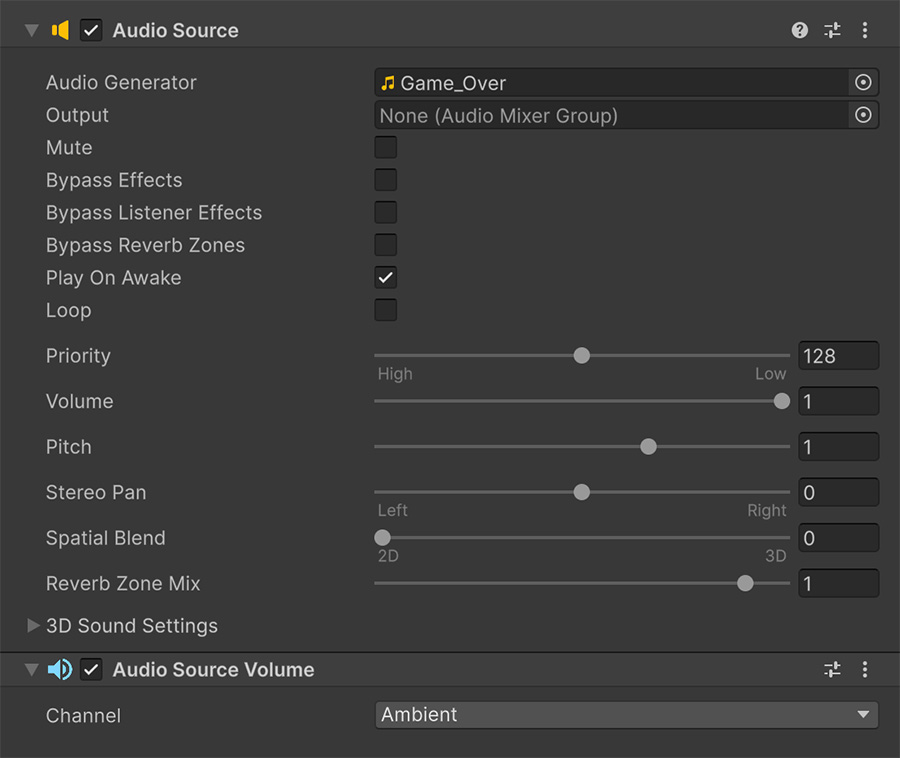
The Audio Unity module makes hand-placed Audio Source components follow Visual Script's volume channels. Add one component next to an Audio Source and pick a channel, and the volume sliders in your options menu now control that source too.
What it solves#
Sounds started by a Play Instruction belong to one of Visual Script's five channels, so a slider that lowers Ambient lowers all of them. An Audio Source you place in a scene knows nothing about those channels. Neither does one driven by Timeline or by another asset.
The result is a campfire that keeps crackling at full volume after the player has turned Ambient down to zero. Players notice this kind of mismatch quickly, because it makes the options menu look broken.
The core idea#
The module adds one component, Audio Source Volume. It sits next to an Audio Source and keeps that source's volume in step with the channel you choose and with Master:
Audio Source volume * channel volume * master volume
You don't need to change how the source plays. The moment a channel or Master changes, the component updates the source.
The campfire follows the Ambient slider
- Select the campfire game object, which has a looping Audio Source.
- Add the component with
Add Component→Visual Script→Audio→Audio Source Volume. - Set its Channel to Ambient.
- In your options menu, connect a slider to the Ambient Volume Signal, as shown in The volume Signals.
Moving the slider now changes the campfire along with every other Ambient sound.
When to use it#
Play Instructions and this component cover different kinds of sound, and most games use both:
| Sound | Use |
|---|---|
| A footstep, gunshot, or click started by an Event | A Play Instruction, which already uses channels. |
| A looping source placed in the scene, such as a campfire or a machine | Audio Source Volume. |
| An Audio Source driven by Timeline or by another asset | Audio Source Volume. |
Try it#
- Add a looping Audio Source to a scene with the component set to Ambient. Run Set Audio Channel Volume on Ambient with a two-second transition, and listen to it fade.
- Do the same with Master instead. The source follows both.
- Disable the component during Play mode and change the channel again. The source stops following it.
- Add a second source on the Music channel, then change Ambient. Only the first source changes.
Where to go next#
- Installation — add the module to your project.
- Audio Source Volume — see how the component calculates volume and what it leaves alone.
- Channels — learn how channels and Master work across the game.