

Audio Presets#
Summary
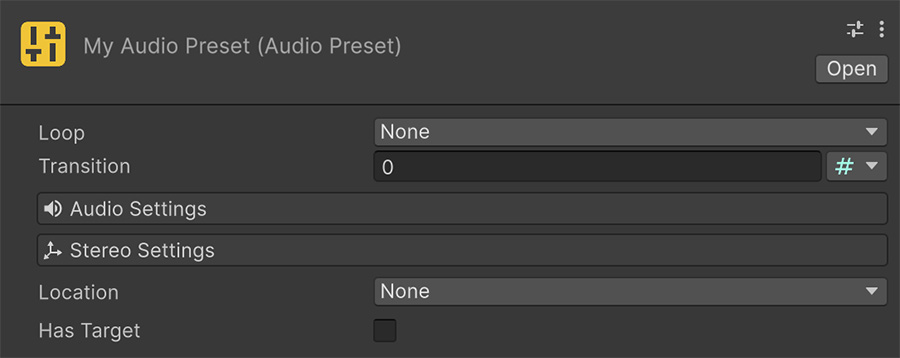
An Audio Preset is an asset that holds the settings a sound plays with, such as its pitch, how far away it can be heard, and where it plays from. Point any number of Play Instructions at one preset, and changing the asset changes how all of them sound.
What it solves#
Every Play Instruction decides how its sound plays through its Settings field. Custom stores the values on that one Instruction, so ten footstep Events mean ten copies of the same pitch range and distance, and tuning them means editing all ten.
Default avoids the copies, but it reads the channel's entry in the Settings window. Every sound on that channel then shares the same values, so footsteps and gunshots on Sound Effect can't differ. A preset sits between the two: one set of values, shared by exactly the sounds you choose.
The core idea#
A Play Instruction still decides what plays and on which channel. The preset decides how it plays:
| Stays on the Instruction | Comes from the preset |
|---|---|
| Audio, Save ID, and the channel | Loop, Transition, volume and pitch, the 3D settings, Has Target, and Location |
Each Instruction reads the preset when it starts a sound. An edit to the asset therefore reaches every Instruction that uses it, starting with the next sound it plays.
Every character's footsteps share one preset
- Create an Audio Preset named
Footsteps. - Set its Spatial Blend to
1, its Max Distance to20, and its Location to Position. - In each character's footstep Event, set Play Sound Effect's Settings to Preset and select
Footsteps.
Each step plays at the character who took it. When playtesting shows the steps carry too far, lower Max Distance in the asset once, and every character changes.
When to use a preset#
The three Settings options cover different amounts of sharing, and a game usually uses all three:
| Sounds that share settings | Use |
|---|---|
| Every sound on a channel | Default, and edit the channel's entry in the Settings window. |
| A group you choose, such as footsteps or sword swings | Preset. |
| None, because one sound needs values of its own | Custom. |
Try it#
- Build the footstep example above with two characters, then change Max Distance in the asset and listen to both.
- Set the preset's Pitch to Random Range between
0.9and1.1, so no two steps sound identical. - Select the same preset in a Play Ambient Instruction. The sound follows the Ambient volume while keeping the preset's settings.
- Edit the preset during Play mode, then leave Play mode and check that the change is still there.
Where to go next#
- Installation — add the module to your project.
- Using Audio Presets — create a preset, select it, and switch presets during the game.
- Playing a sound — learn what each playback setting does.